How to use tabiori

Learn the useful features of tabiori for your trip.
Please take a look.

Sort Checklist Pages and Categories

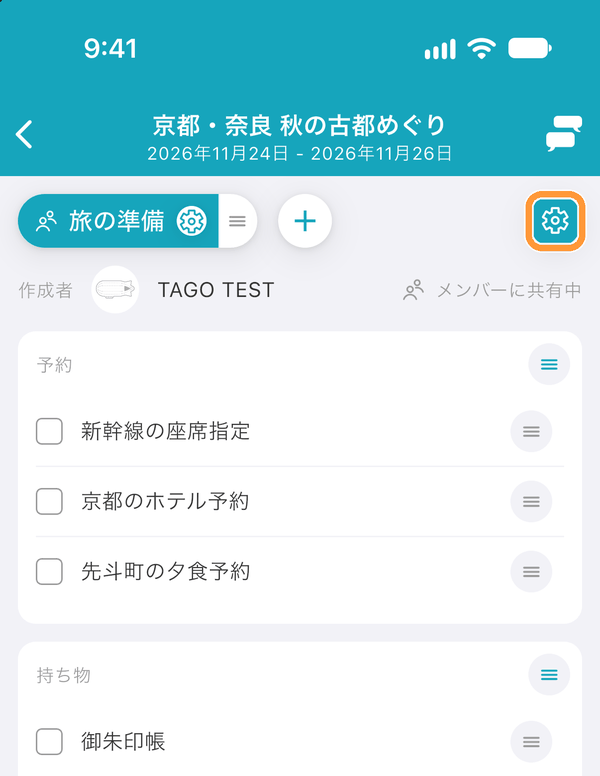
Tap the page/category settings button in the top right of the checklist page to go to the page/category edit screen.

Tap the page/category settings button in the top right of the checklist page to go to the page/category edit screen.

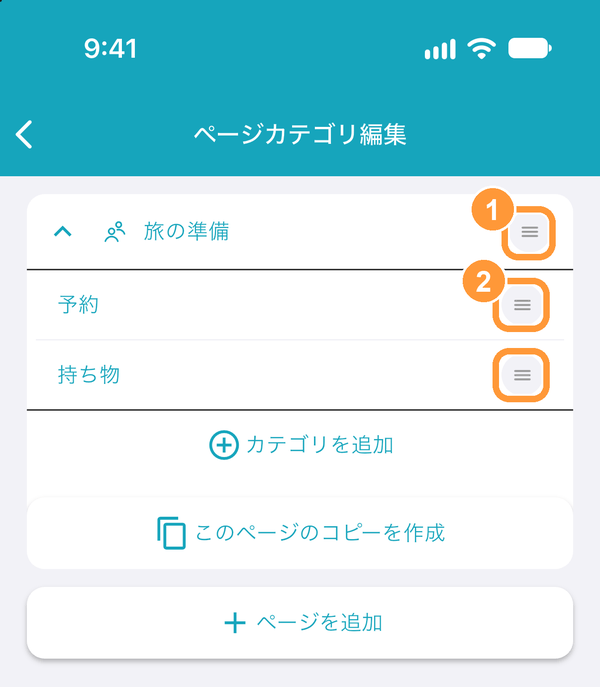
You can drag and drop using the button on the right end to reorder.
Also, tapping on a page title will show its categories.
Categories can be reordered in the same way by dragging.

You can drag and drop using the button on the right end to reorder.<br>Also, tapping on a page title will show its categories.<br>Categories can be reordered in the same way by dragging.

Sort Categories

Tap the “☑️➕” button at the top right of the Checklist screen to open the Page / Category Edit screen.

Tap the “☑️➕” button at the top right of the Checklist screen to open the Page / Category Edit screen.

Tap a page title to expand its category list. Drag the handle on the right end of each category to reorder them.

Tap a page title to expand its category list. Drag the handle on the right end of each category to reorder them.

Copy a Checklist from Another Itinerary

Tap the “☑️➕” button at the top right of the Checklist screen to open the Page / Category Edit screen.

Tap the “☑️➕” button at the top right of the Checklist screen to open the Page / Category Edit screen.

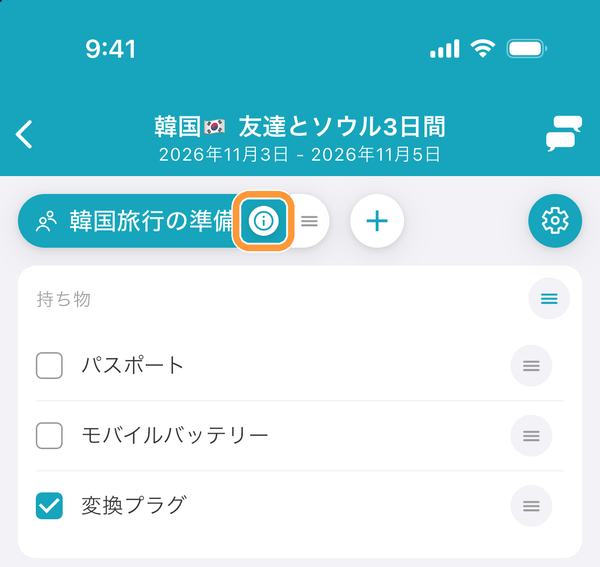
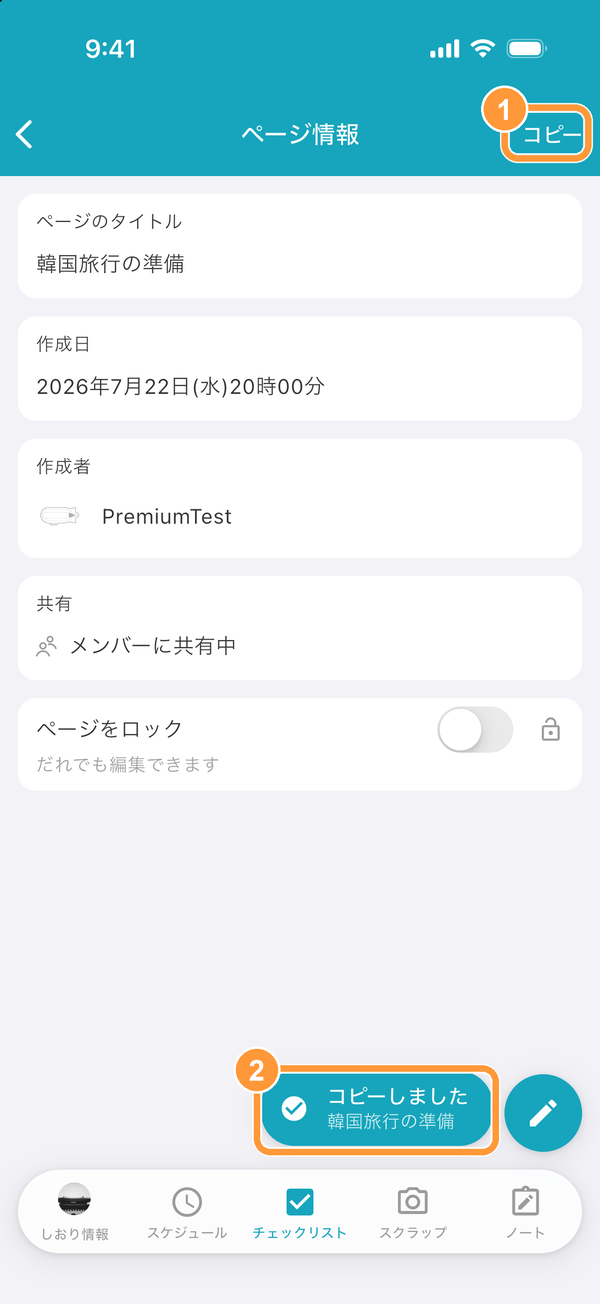
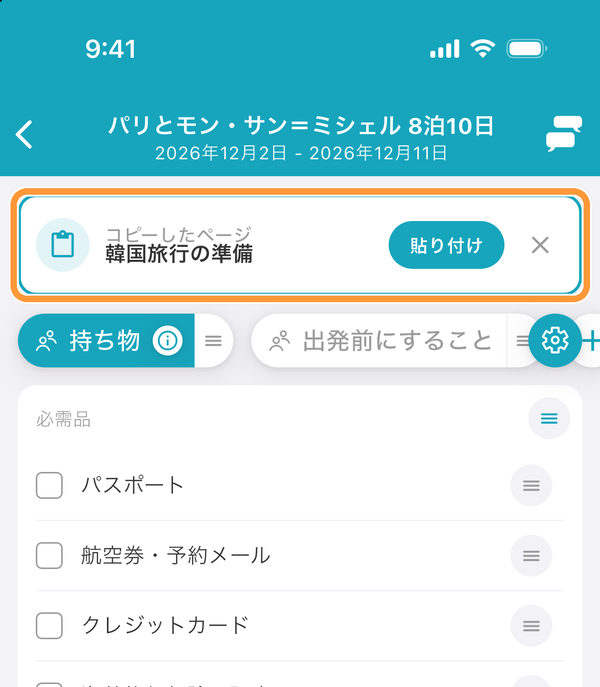
Tap the “Duplicate this page” button at the bottom of the page you want to copy. You can then pick a source itinerary and copy an entire checklist page from it.

Tap the “Duplicate this page” button at the bottom of the page you want to copy. You can then pick a source itinerary and copy an entire checklist page from it.
Ask AI

Learn more about tabiori

Ask the AI you already use whether tabiori suits your trip. Your question is ready with a single click.

Opens a new tab with your question and tabiori's official information already included.