How to use tabiori

Learn how to plan and share your trip with tabiori.

The screenshots show the Japanese interface. Follow the English instructions beside each image; numbered markers identify the same controls.

Share & Invite Members

On the itinerary's "Information" tab, tap the "Invite" button at the bottom right to open the member invitation screen.
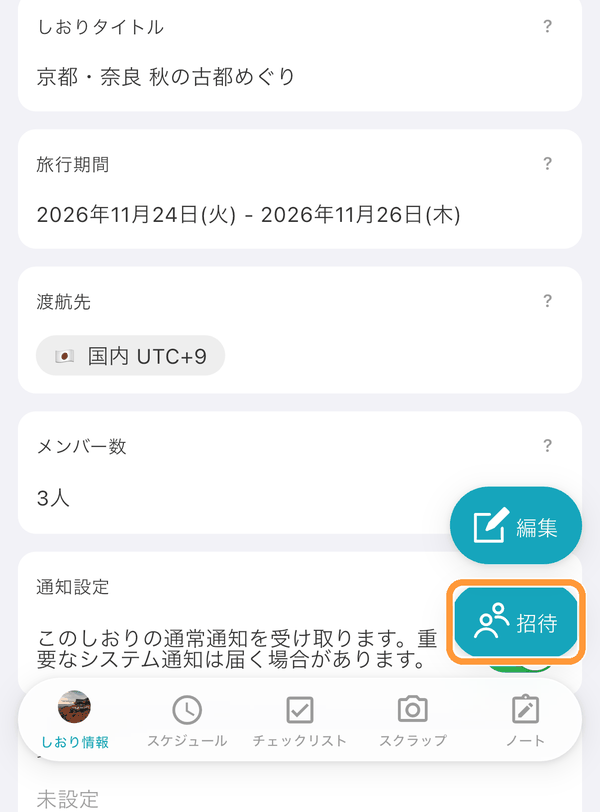
On the itinerary's "Information" tab, tap the "Invite" button at the bottom right to open the member invitation screen.

Share the invitation QR code or URL with the family and friends you want to invite.
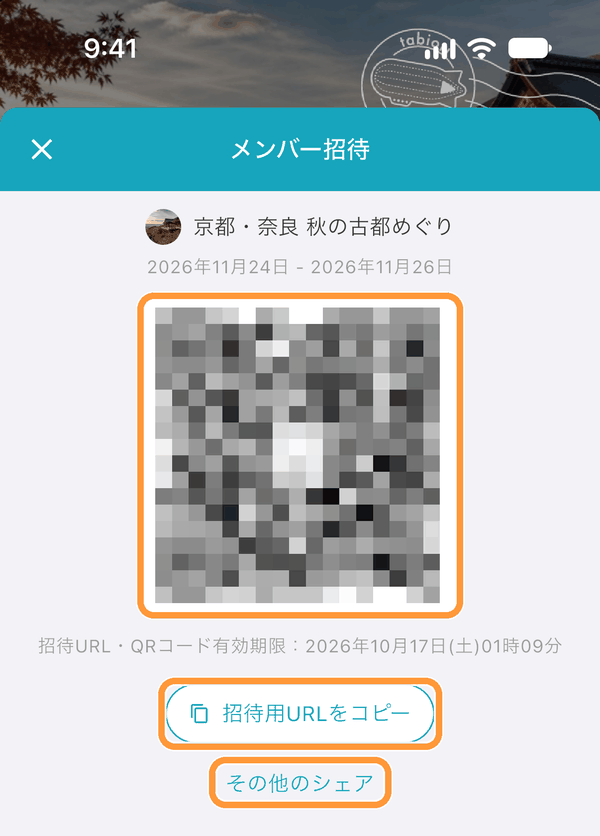
Share the invitation QR code or URL with the family and friends you want to invite.

You can also do the same from the itinerary list screen: tap "︙" at the top right of an itinerary and choose "Invite to itinerary".
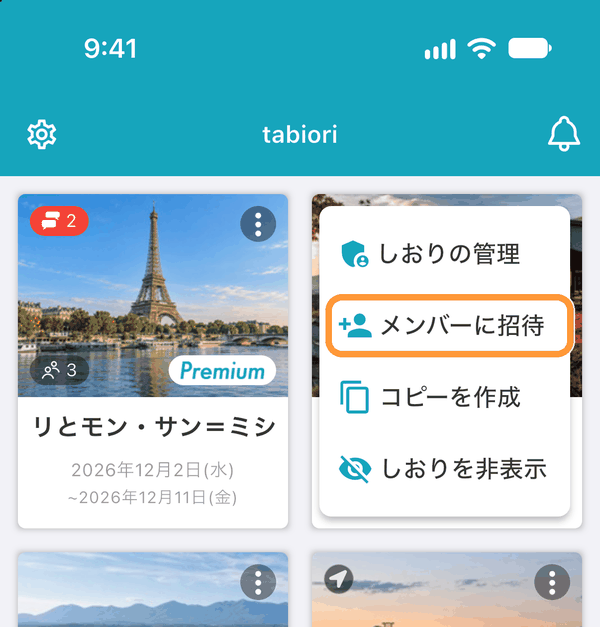
You can also do the same from the itinerary list screen: tap "︙" at the top right of an itinerary and choose "Invite to itinerary".

Duplicate an Itinerary

On the itinerary list screen, tap "︙" at the top right of the itinerary you want to duplicate and choose "Duplicate itinerary". You can also do the same from "Duplicate this itinerary" on the "Information" tab.
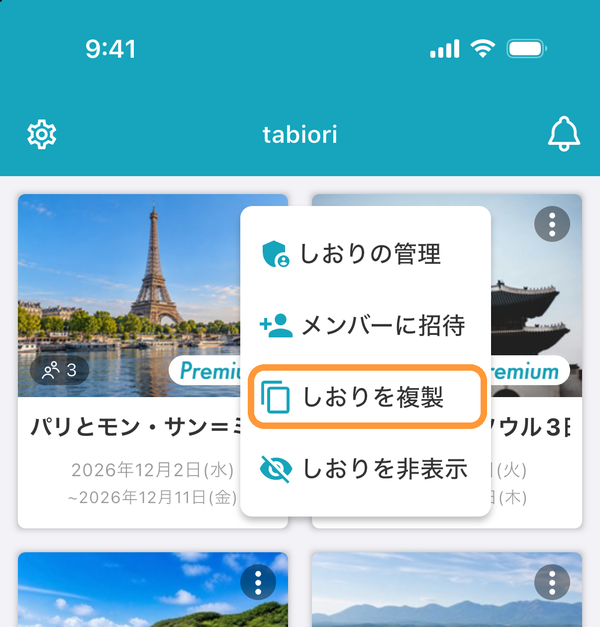
On the itinerary list screen, tap "︙" at the top right of the itinerary you want to duplicate and choose "Duplicate itinerary". You can also do the same from "Duplicate this itinerary" on the "Information" tab.

When the confirmation appears, tap "OK".
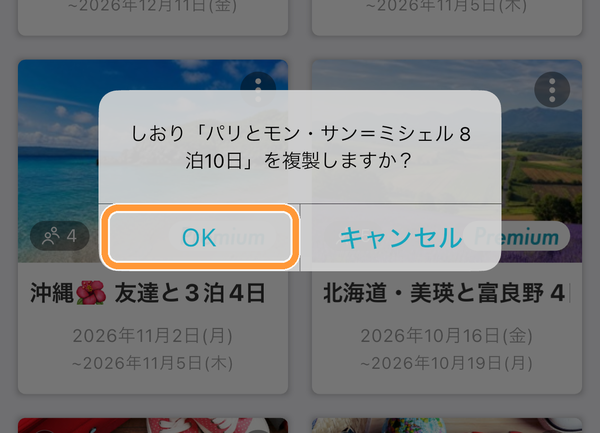
When the confirmation appears, tap "OK".

Share Your Location with Members

On the "Information" tab of the itinerary you want to share your location in, turn on "Share your location with members during travel" under "Share your location". Your location is shared with members only during the trip period set for the itinerary.
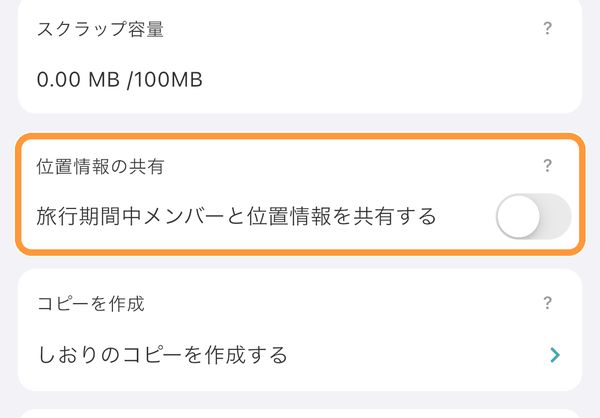
On the "Information" tab of the itinerary you want to share your location in, turn on "Share your location with members during travel" under "Share your location". Your location is shared with members only during the trip period set for the itinerary.

You can also turn it on or off with the "Share your location" button at the top right of the map on the schedule detail screen. The current locations of members who are sharing appear on this map.
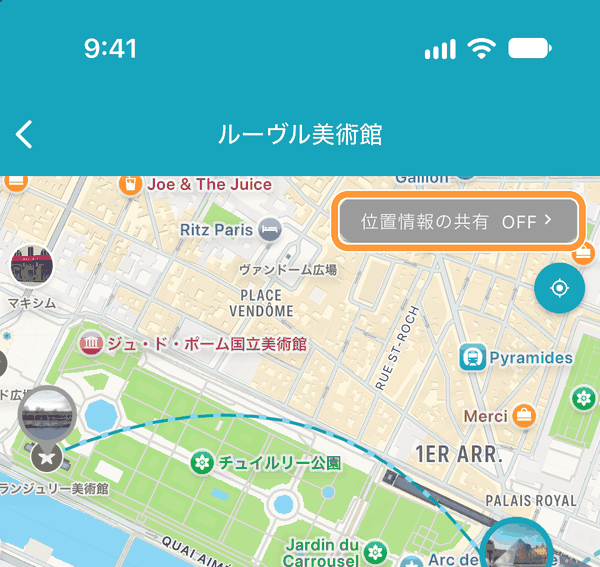
You can also turn it on or off with the "Share your location" button at the top right of the map on the schedule detail screen. The current locations of members who are sharing appear on this map.

Set or Change the Trip Period (Departure and Return Dates)

On the itinerary create/edit screen, under "Dates", tap ① "Departure date" and ② "Return home" and choose dates from the calendar. If your dates aren't decided yet, you can leave them as "TBD" and still create the itinerary.
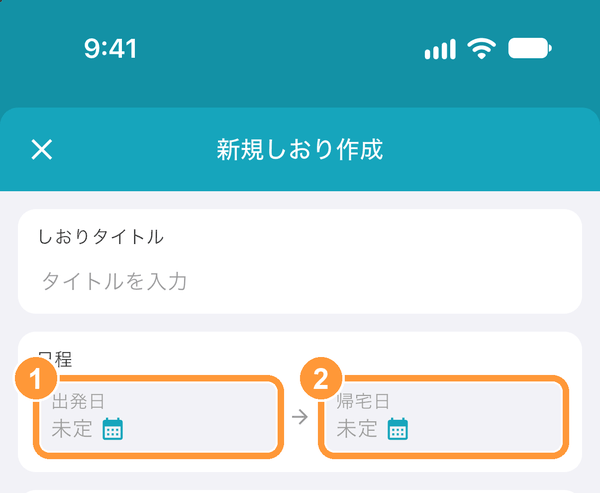
On the itinerary create/edit screen, under "Dates", tap ① "Departure date" and ② "Return home" and choose dates from the calendar. If your dates aren't decided yet, you can leave them as "TBD" and still create the itinerary.

Tap ③ the "×" at the top right of a date to set it back to "TBD". The return date can't be earlier than the departure date, so to move your trip earlier, change the departure date first. If you set the departure date later than the return date, the return date changes to the same day.
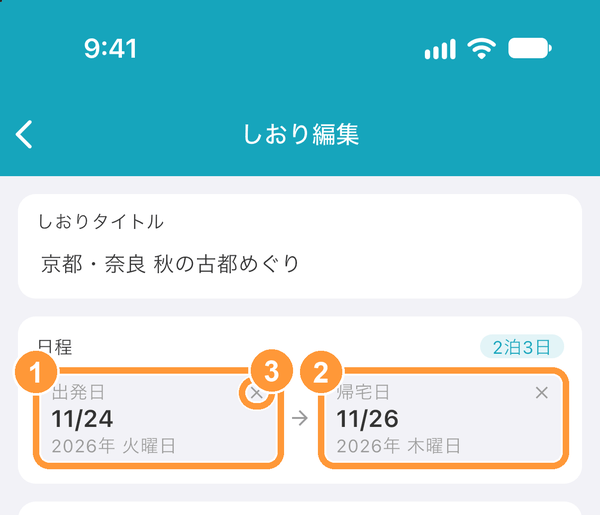
Tap ③ the "×" at the top right of a date to set it back to "TBD". The return date can't be earlier than the departure date, so to move your trip earlier, change the departure date first. If you set the departure date later than the return date, the return date changes to the same day.

If the itinerary has schedules and you change the departure date and tap "Change", you'll be asked what to do with the schedule dates. ① "Keep schedule dates": schedules stay on the same calendar dates (their day numbers change). ② "Move with the trip": schedules keep their day numbers, and their dates move along with the departure date. The return date doesn't change automatically, so change it if needed.
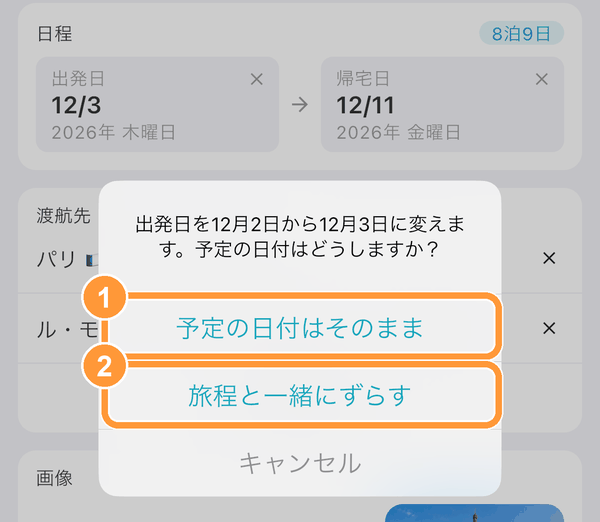
If the itinerary has schedules and you change the departure date and tap "Change", you'll be asked what to do with the schedule dates. ① "Keep schedule dates": schedules stay on the same calendar dates (their day numbers change). ② "Move with the trip": schedules keep their day numbers, and their dates move along with the departure date. The return date doesn't change automatically, so change it if needed.
Ask AI

Learn more about tabiori

Ask the AI you already use whether tabiori suits your trip. Your question is ready with a single click.

Opens a new tab with your question and tabiori's official information already included.