How to use tabiori

Learn how to plan and share your trip with tabiori.

The screenshots show the Japanese interface. Follow the English instructions beside each image; numbered markers identify the same controls.

Sort Checklist Pages and Categories

Tap the gear button at the top right of the Checklist screen to go to the "Edit pages & categories" screen.
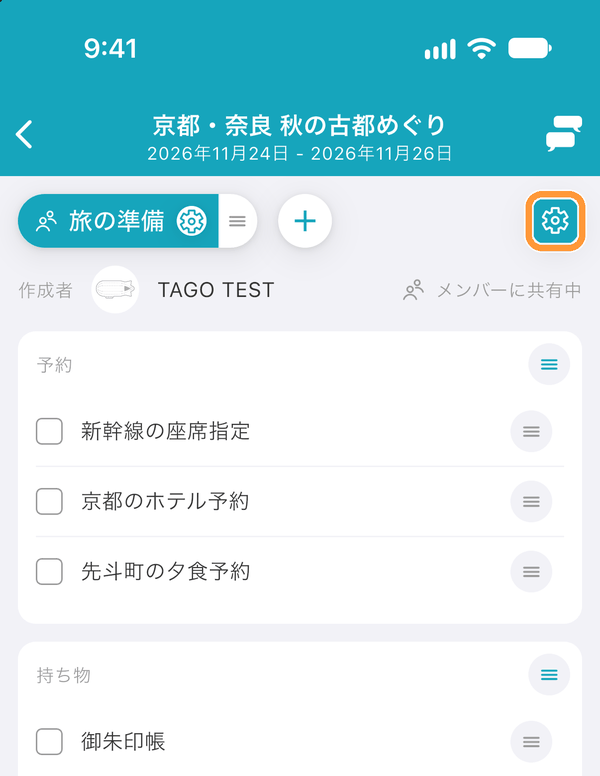
Tap the gear button at the top right of the Checklist screen to go to the "Edit pages & categories" screen.

Drag the button at the right end of ① a page or ② a category to reorder it. Tap ③ the arrow to the left of a page's name to show or hide that page's categories. Tapping the page's name opens "Page information".
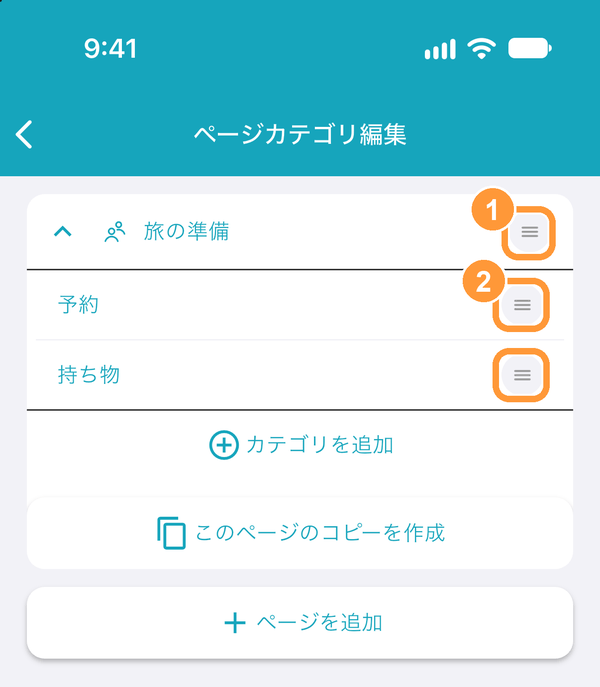
Drag the button at the right end of ① a page or ② a category to reorder it. Tap ③ the arrow to the left of a page's name to show or hide that page's categories. Tapping the page's name opens "Page information".

Copy a Checklist to Another Itinerary

Tap the ⓘ button on the tab of the page you want to copy to open "Page information".
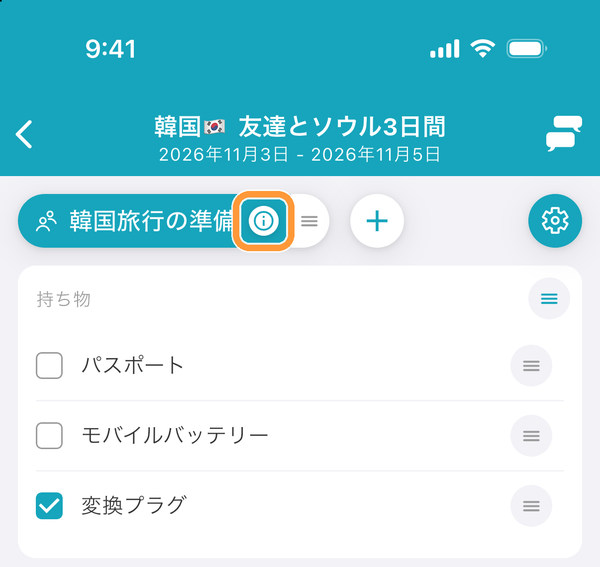
Tap the ⓘ button on the tab of the page you want to copy to open "Page information".

① Tap "Copy" at the top right. ② "Copied" appears.
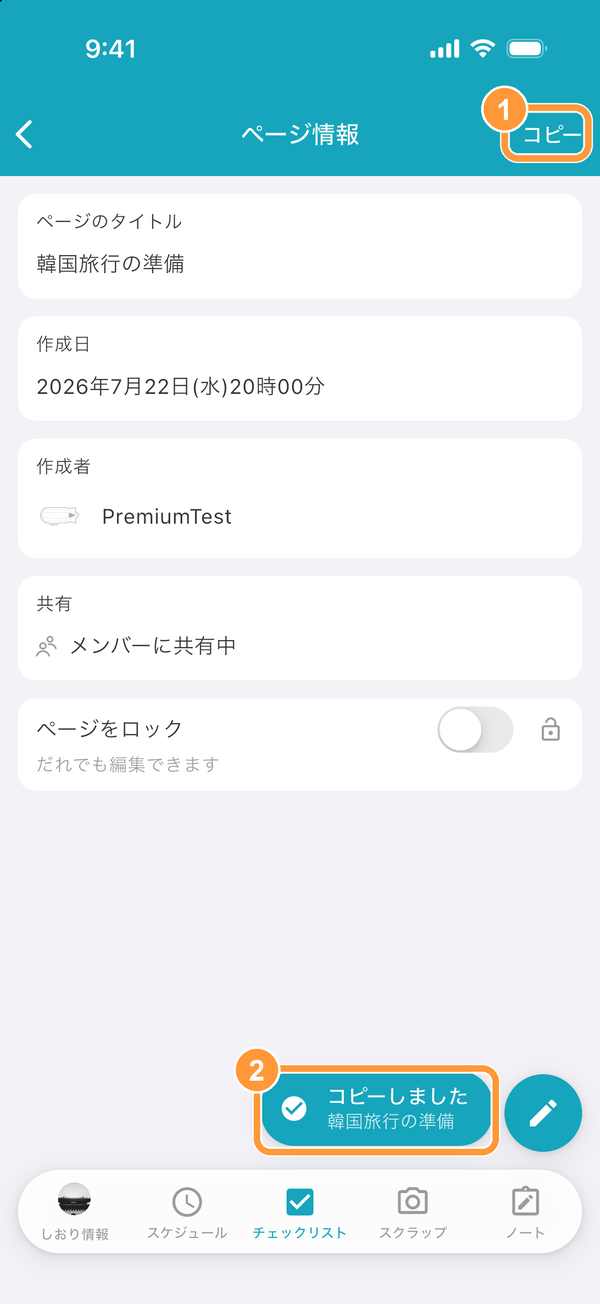
① Tap "Copy" at the top right. ② "Copied" appears.

Open the Checklist screen of the itinerary you want to copy it to. "Copied page" appears at the top. Tap "Paste" to add the page together with its checklist.
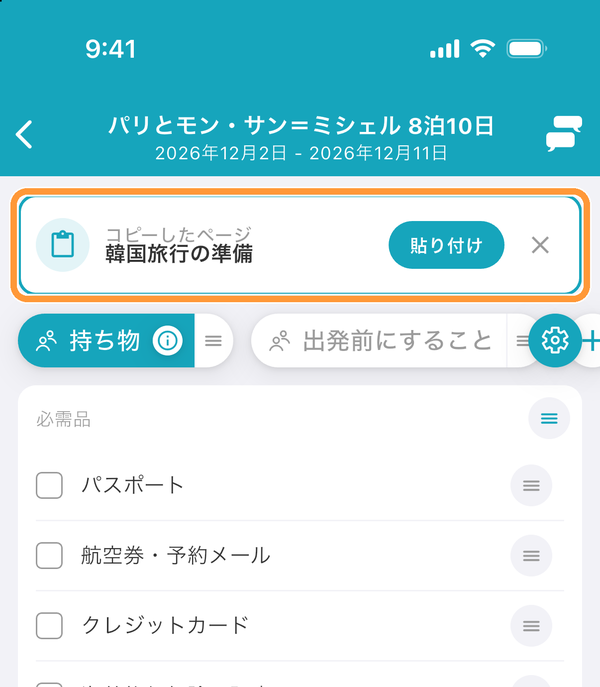
Open the Checklist screen of the itinerary you want to copy it to. "Copied page" appears at the top. Tap "Paste" to add the page together with its checklist.
Ask AI

Learn more about tabiori

Ask the AI you already use whether tabiori fits your trip. Your question is ready with a single click.

Opens a new tab with your question and tabiori's official information already included.