How to Print
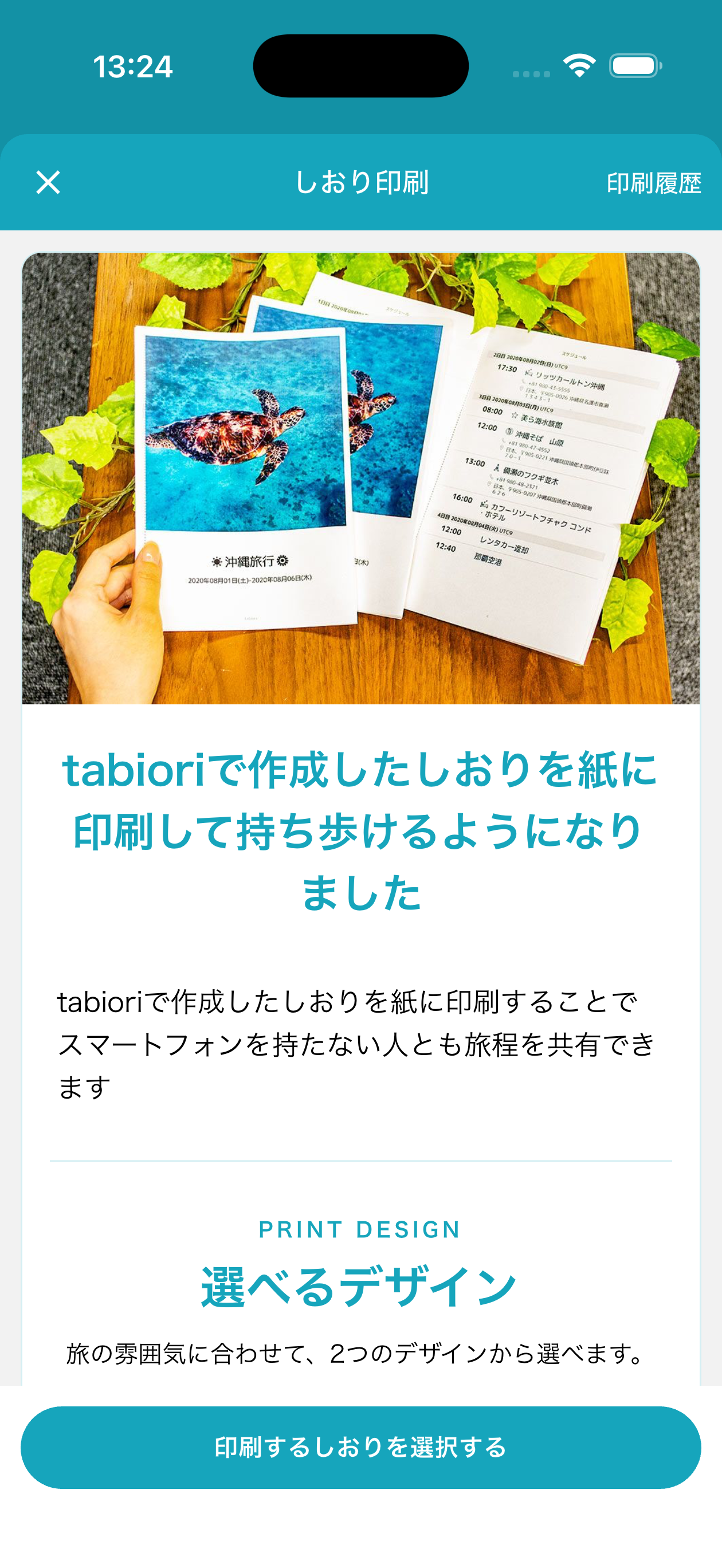
Under Itinerary Info, tap Print Itinerary. Review the usage guide, then tap Create Preview.
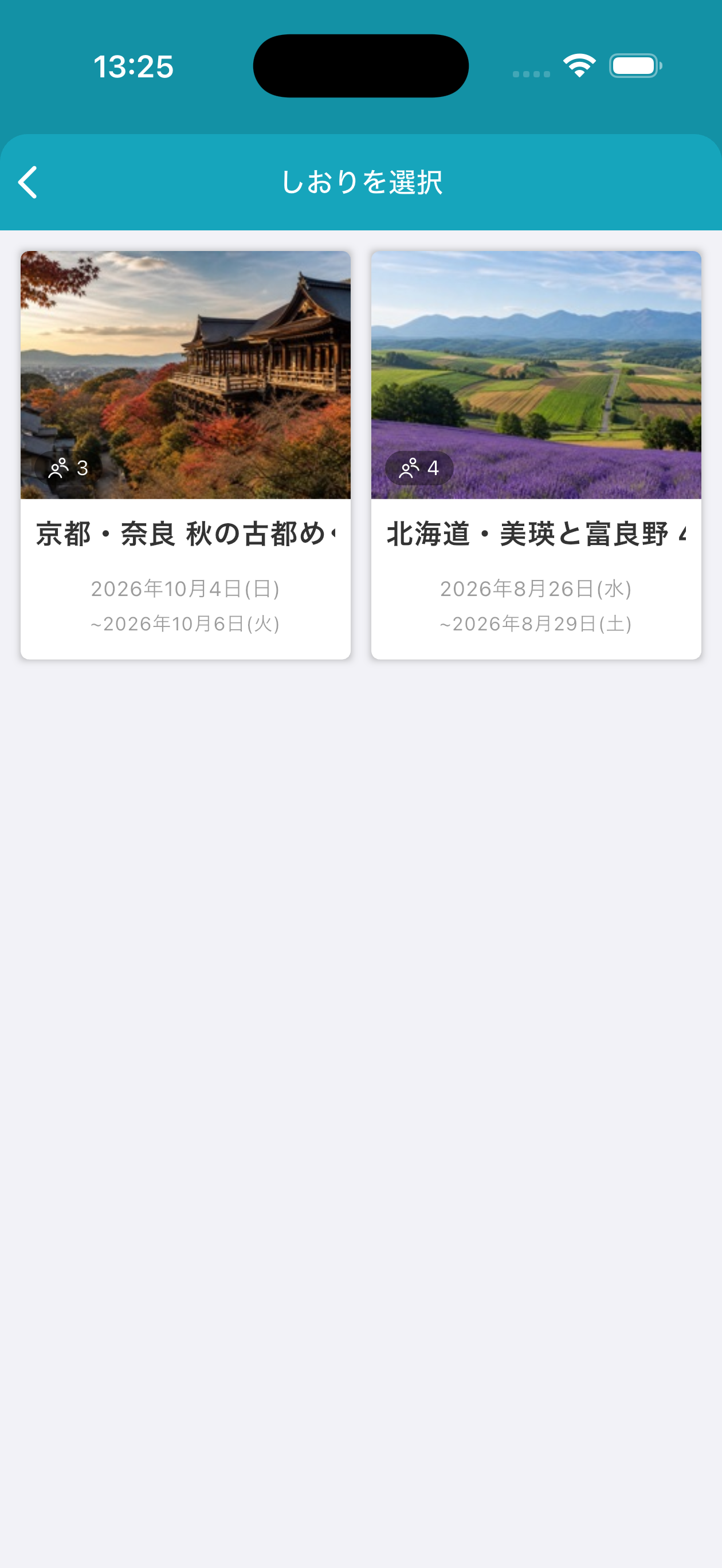
If you opened the printing screen without an itinerary selected, choose the itinerary you want to print.
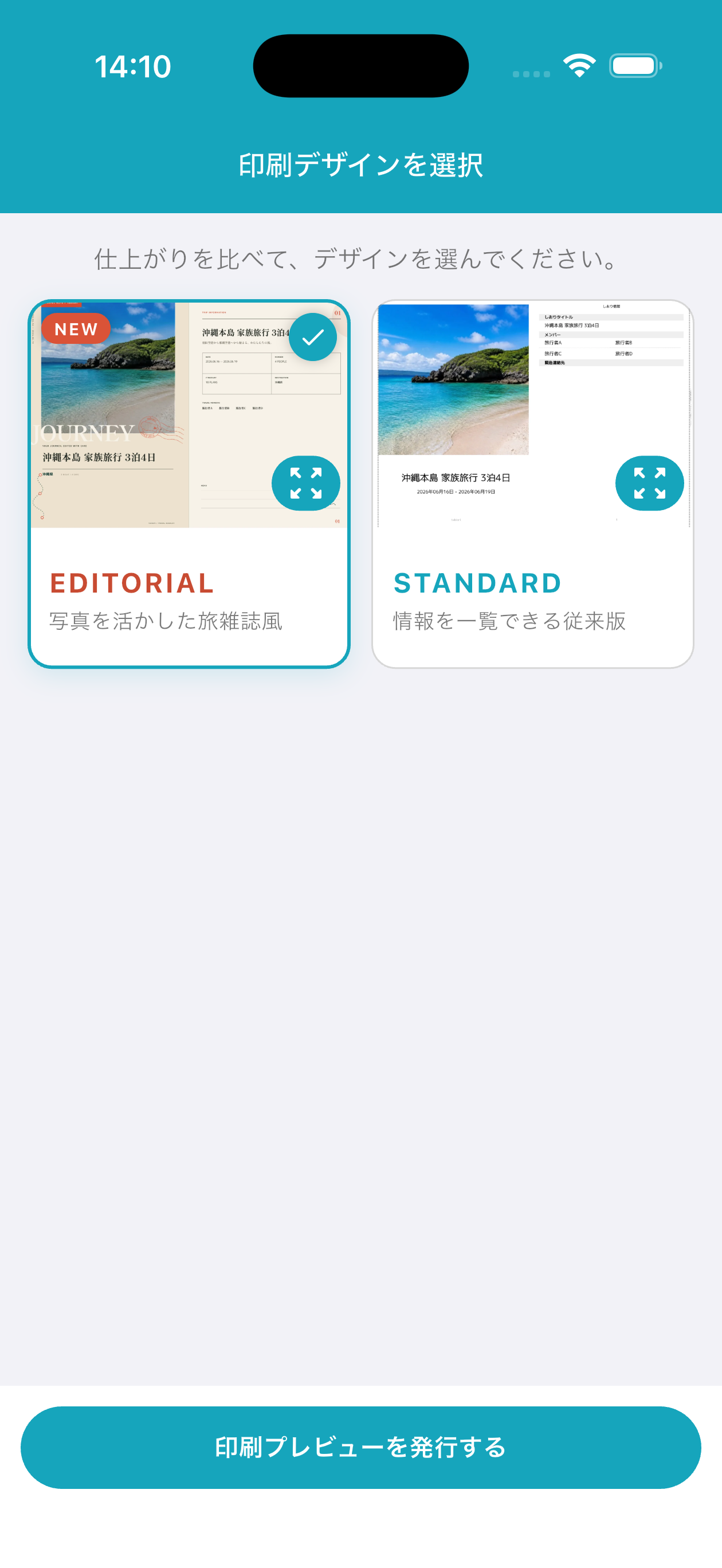
Compare the finishes and choose a design. EDITORIAL (Travel-magazine style featuring your photos) / STANDARD (The classic layout with information at a glance)
Create Preview
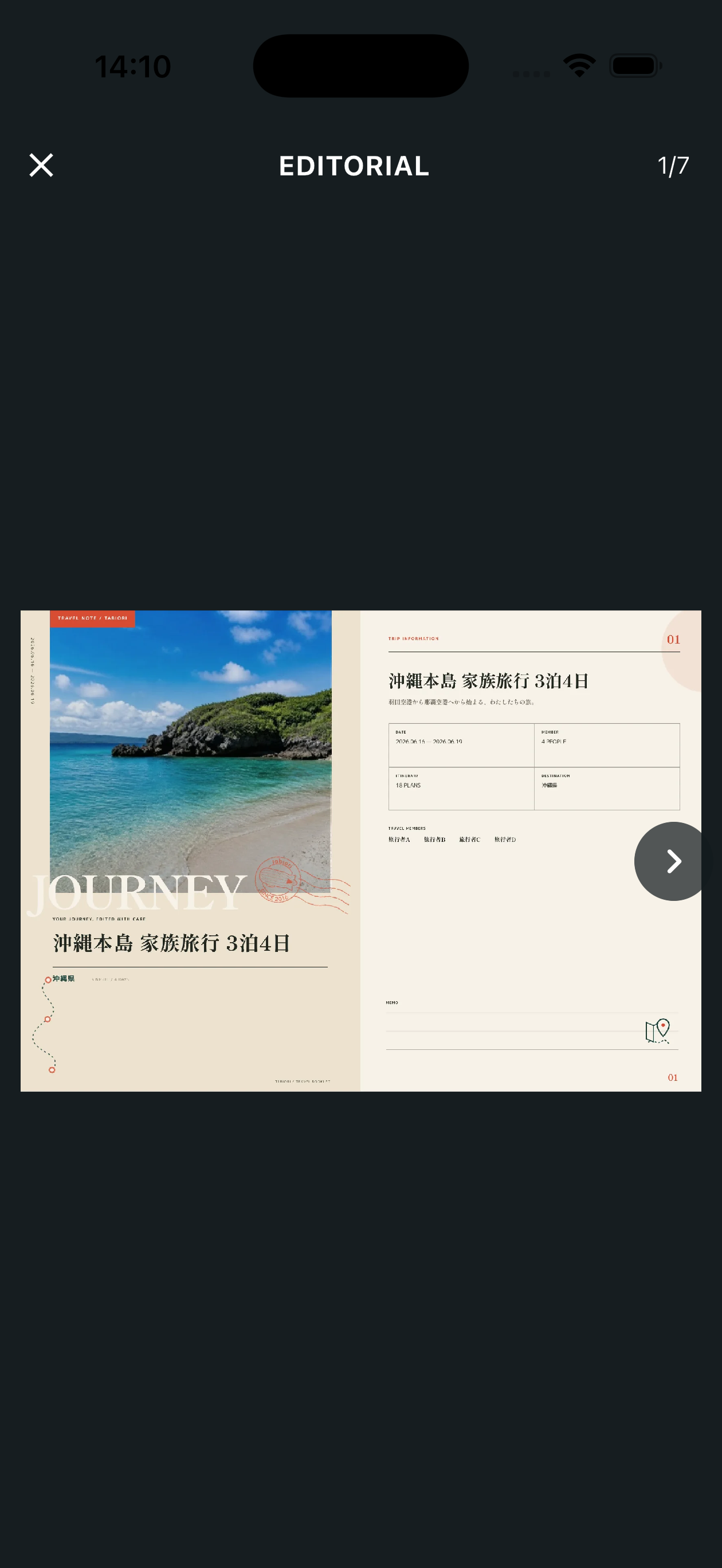
Swipe left or right to move between preview pages, and pinch to zoom. After checking the content, follow the on-screen instructions to proceed to payment.
Before printing at a convenience store
The print-data submission fee is ¥299 (tax included). * Printing at the store costs extra. The User Number is valid for 5 days from issue. If there is a large amount of data, the print job may be split into multiple files. Use the same User Number to print every file at the store. Please print the desired number of copies after entering the user number on the multifunction copier at a participating Lawson, FamilyMart, or Poplar Group store in Japan.
How to Check Your Print Number (User Number)
Open "Print itinerary" from "Store" at the bottom of the itinerary list screen, then tap "History" at the top right.
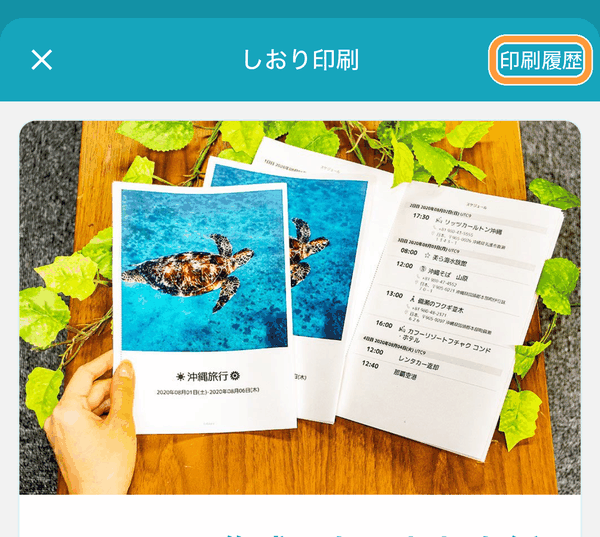
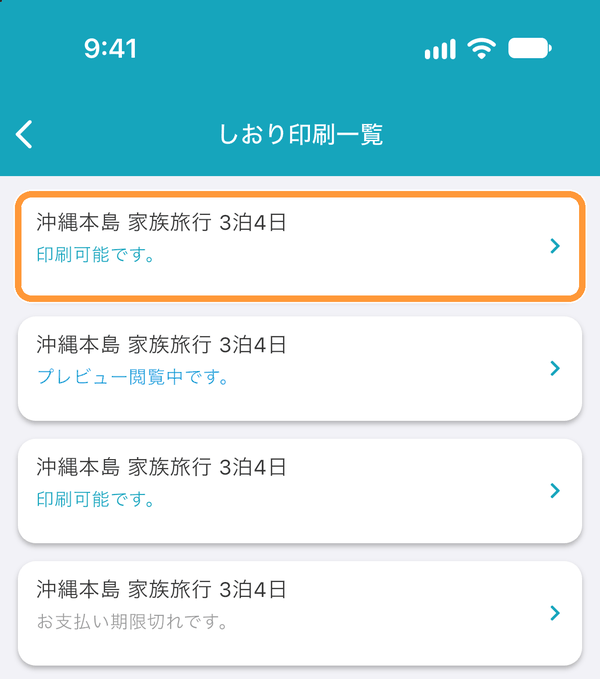
In "History", tap the itinerary you want to check.
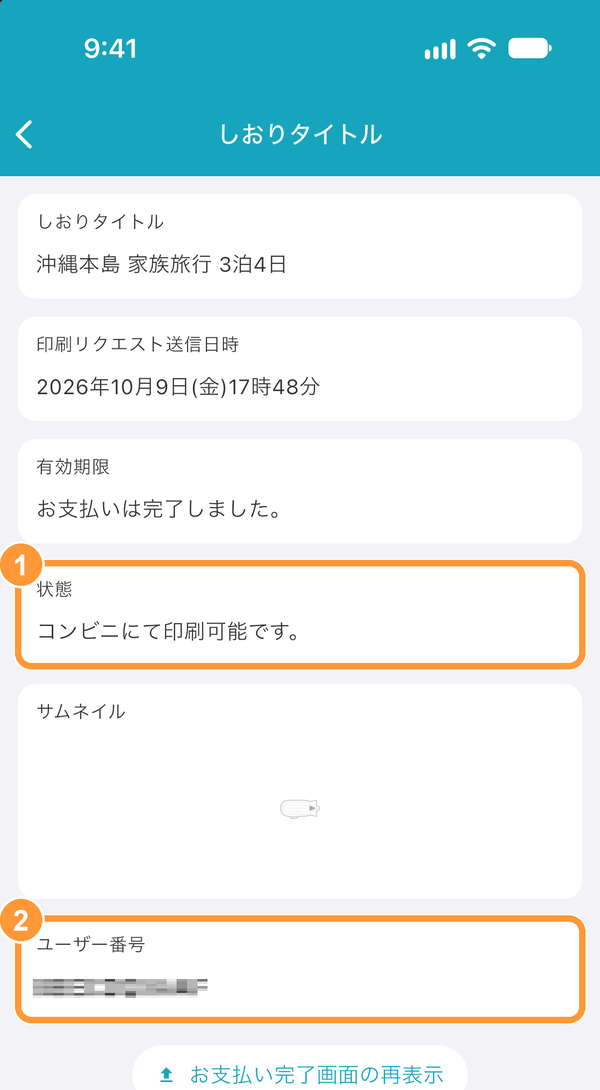
Check ① "Status" to see whether it can be printed, and ② "User number" for the number to enter on the multifunction copier at a convenience store.
Print at home with tabiori on the web
Click "Print this Itinerary" from the itinerary information page of the itinerary you want to print.
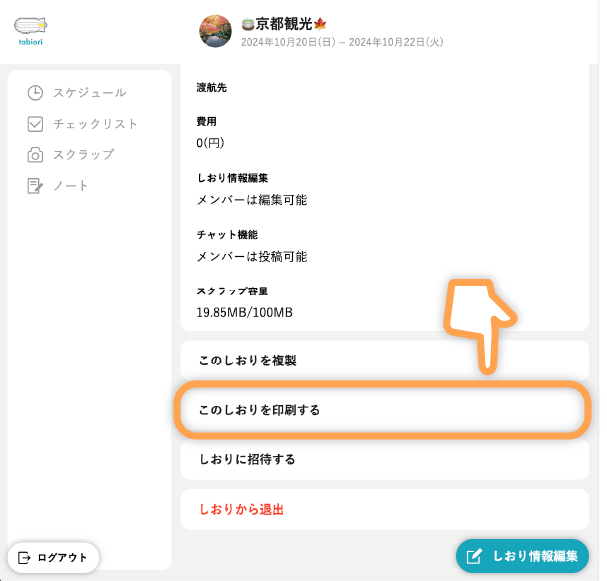
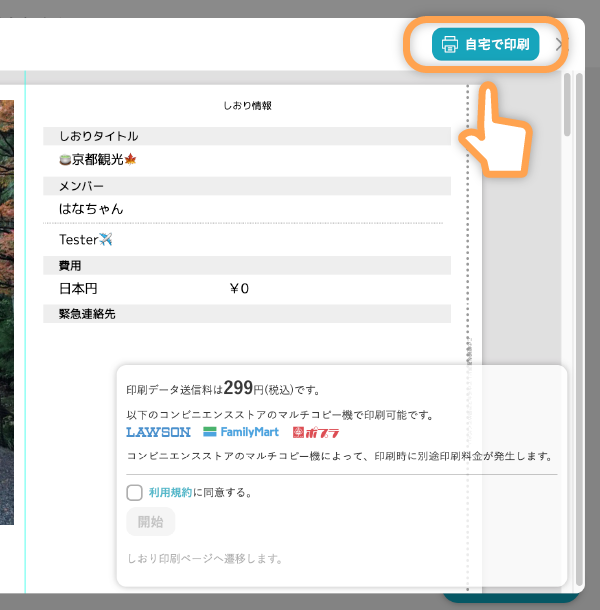
Click "Print at Home" in the top right of the preview window to print the itinerary using your home printer.
This feature is available to tabiori Premium subscribers
How to Bind After Printing
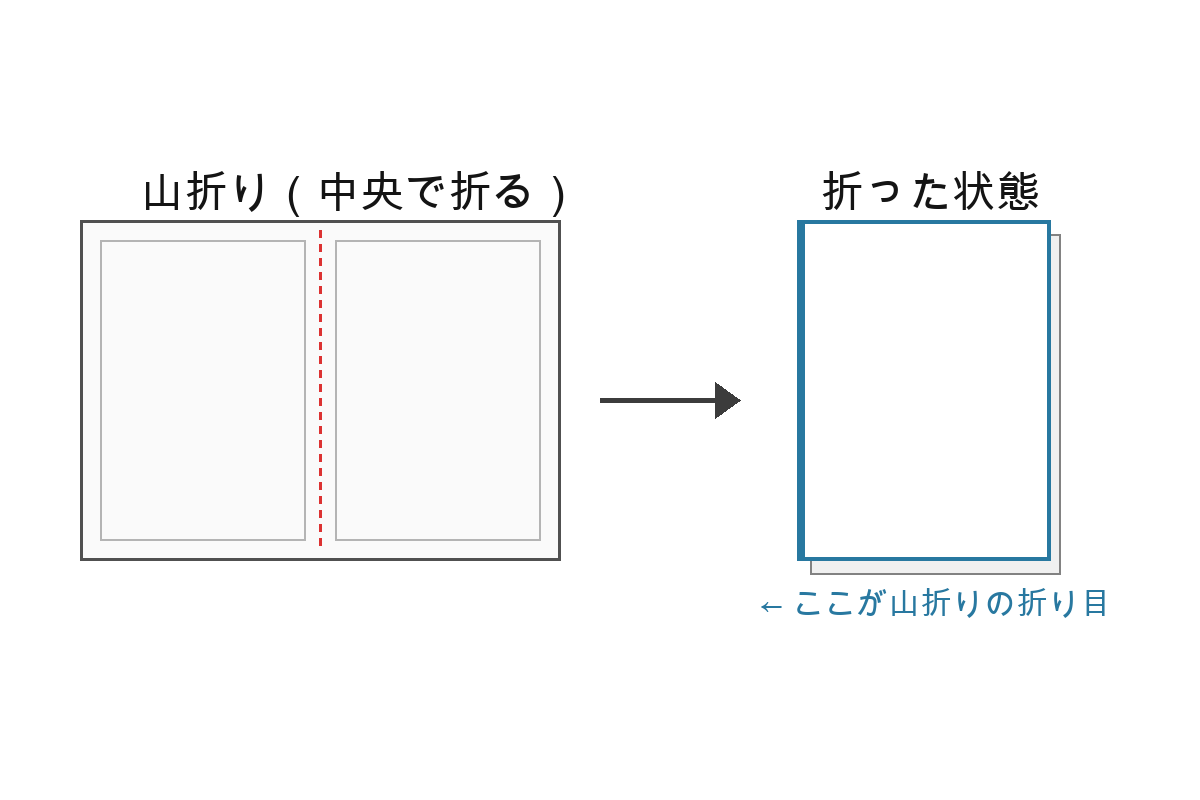
Mountain-fold each printed sheet along the vertical centerline so that the printed side faces outward.
Stack the folded sheets in order and staple them along the guide line printed on each sheet edge ("Please staple along this vertical line") to complete your itinerary booklet.