Add a Place (Spot) to a Schedule
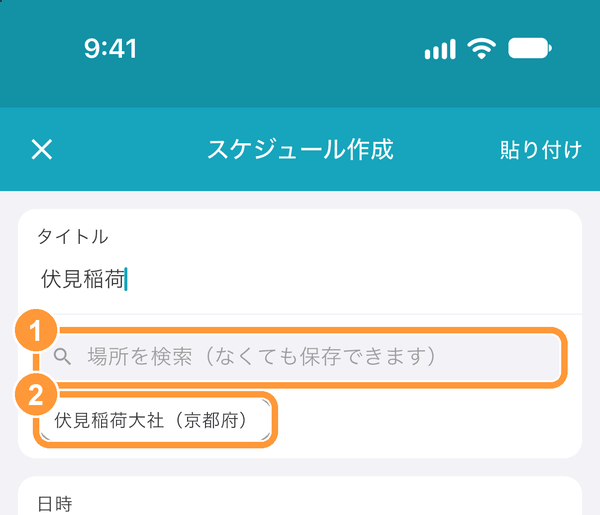
On the schedule create/edit screen, tap ① "Search for a place (optional)" below the title. When you enter a title, ② suggested spots registered in tabiori appear, and you can choose one with a single tap.
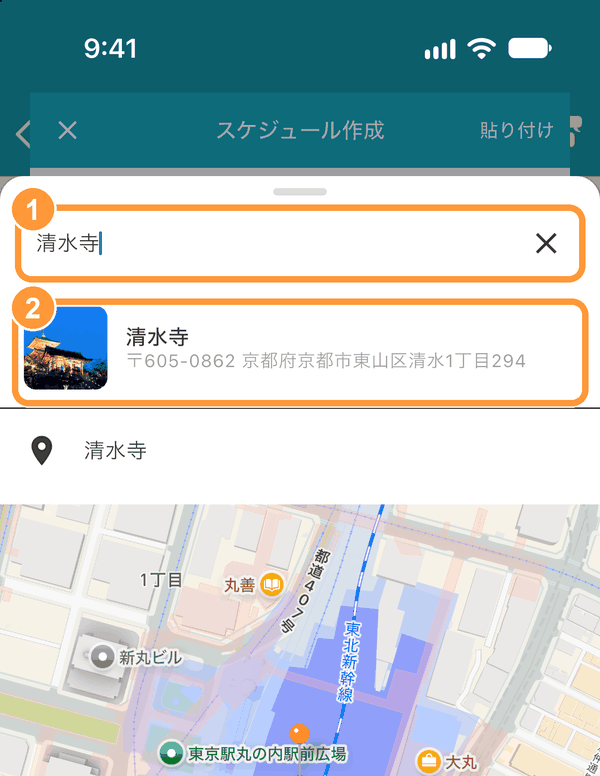
Enter the name of the place in ① the search field and choose from ② the search results. Suggestions with a photo are tabiori spots, and those with a pin icon are map search results. You can also tap the map to mark the place with a pin.
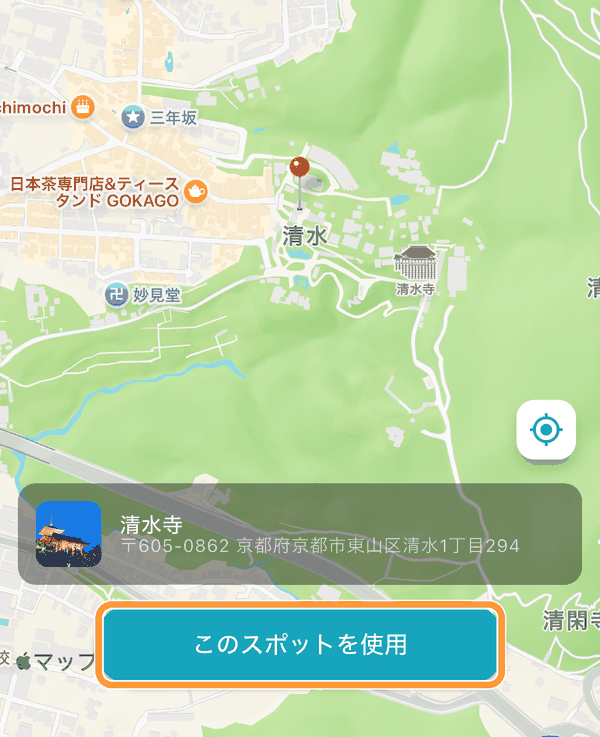
Tap "Use this spot" (or "Use this location" if you picked the place on the map).
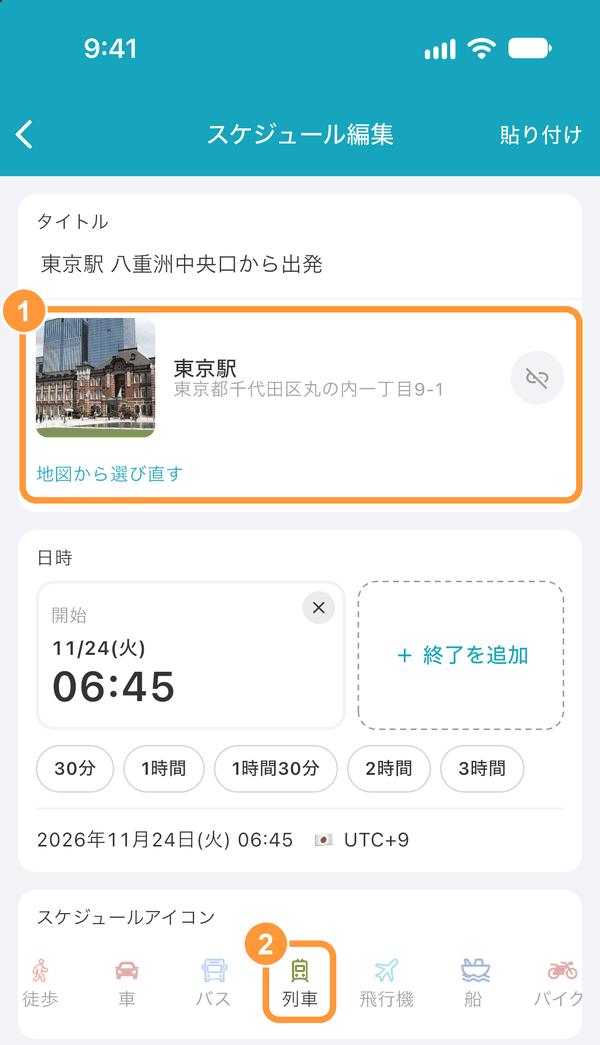
① The photo, name, and address of the chosen place are shown. If the title is empty, the spot's name is filled in, and if ② the icon isn't set, an icon that suits the spot (historic site, food, train, etc.) is chosen. Use the button on the right to remove the place. Tap "Choose another place on the map" to choose a different place.
Enter a Schedule's Date and Time
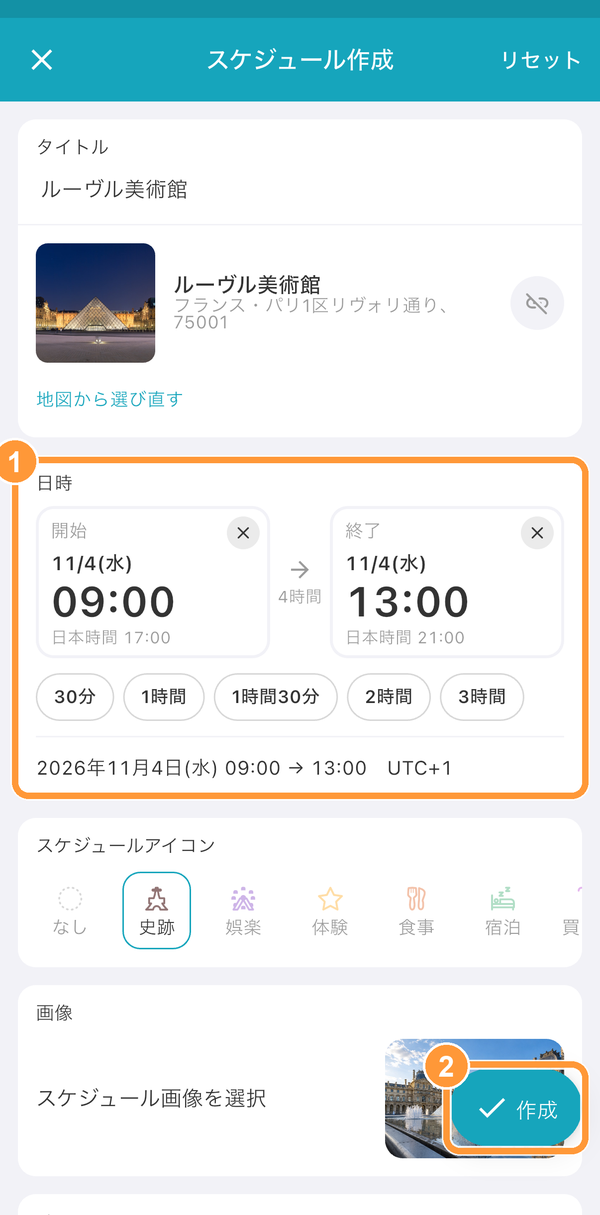
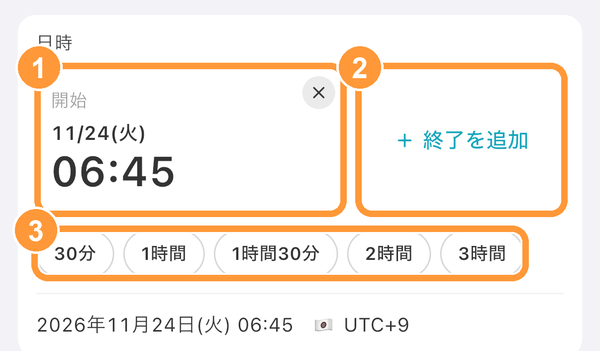
On the schedule create/edit screen, under "Date and time", tap ① "Start" to show the date and time input at the bottom of the screen. To enter an end time, tap ② "Add end time". Tap ③ "30 min", "1 h", or another length to set the end to that long after the start.
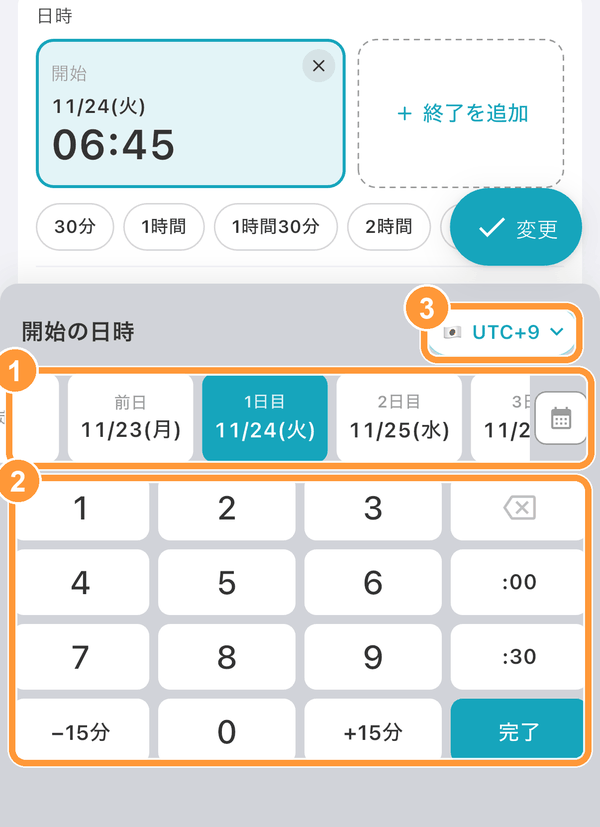
Choose a day (such as "Day 1" or "Day before") from ① the date cards, enter the time with ② the number keys, and tap "Done". You can also pick a date from the calendar with the calendar button at the right end of the date cards. Tap ③ the time zone button to change the time zone.
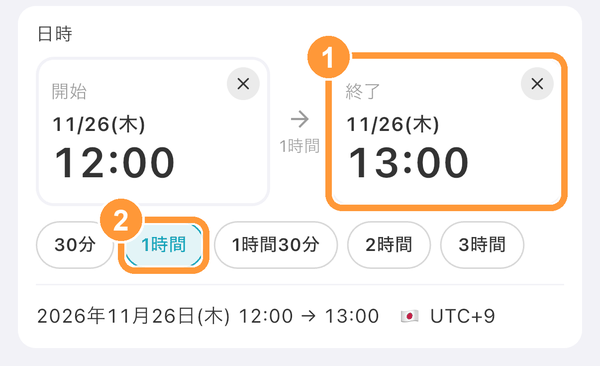
① Once you add an end, the start and end appear side by side with the time between them. ② The button for the length you chose is highlighted. For schedules that run past midnight (such as a hotel stay or overnight travel), choose a different day in the end's date cards.
Tap the "×" at the top right to clear the time or the end. Schedules without a time appear at the top of the day as "All day". If you choose "TBD" at the left end of the date cards, the schedule appears under "Other schedule" in the schedule list.
Time Differences on Trips Abroad (Time Zones)
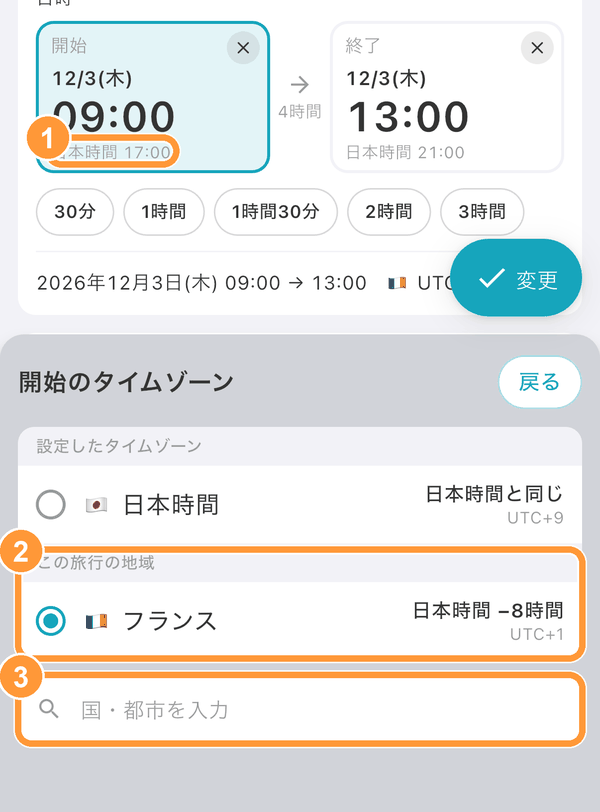
Tap the button at the top right of the date and time input (e.g., "UTC+1") to choose a time zone. When you choose a place, the time zone for that place is selected automatically. ① If there's a time difference from where you live, the time where you live (e.g., "Japan time 17:00") is also shown in small text. You can also choose from ② "Places on this trip" or by ③ searching for a country or city.
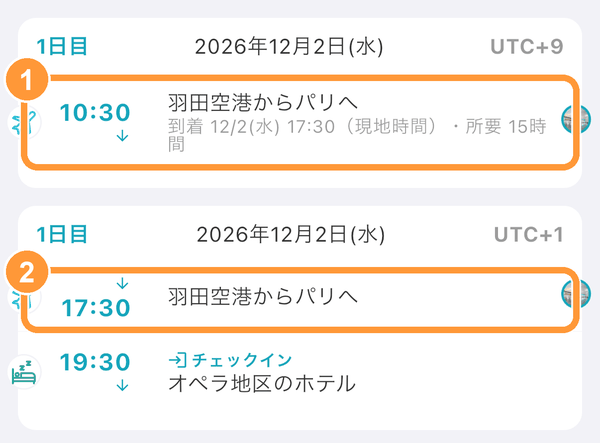
For travel with a time difference, such as flights, you can set separate time zones for the departure and the arrival. In the schedule list, the local arrival time and the travel time are shown on ① the departure day, and the same schedule also appears on ② the arrival day.
Collapse Schedules by Day
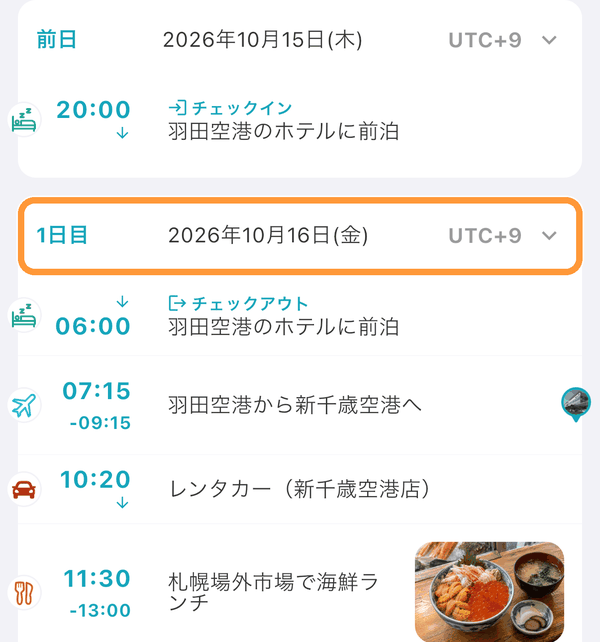
In the schedule list, tap a date heading (the row such as "Day 1") to collapse that day's schedules. Tap it again to expand them.
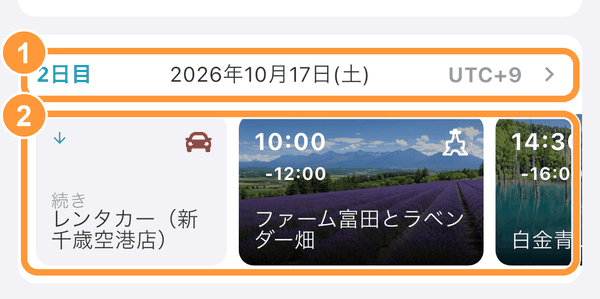
On ① a collapsed day, ② the schedules are lined up as wide cards. Swipe left or right to browse them; for schedules with a photo, the photo becomes the card's background. Tap a card to open the schedule's details. The collapsed state is saved on this device, so it stays that way the next time you open the schedule list. It doesn't affect what other members see.
View Schedules in the Timetable
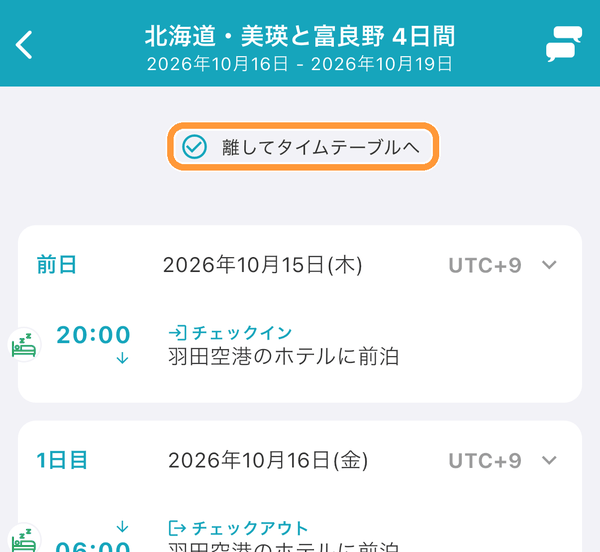
With the schedule list scrolled to the very top, pull the screen down. When "Release to show timetable" appears, lift your finger to open the timetable.
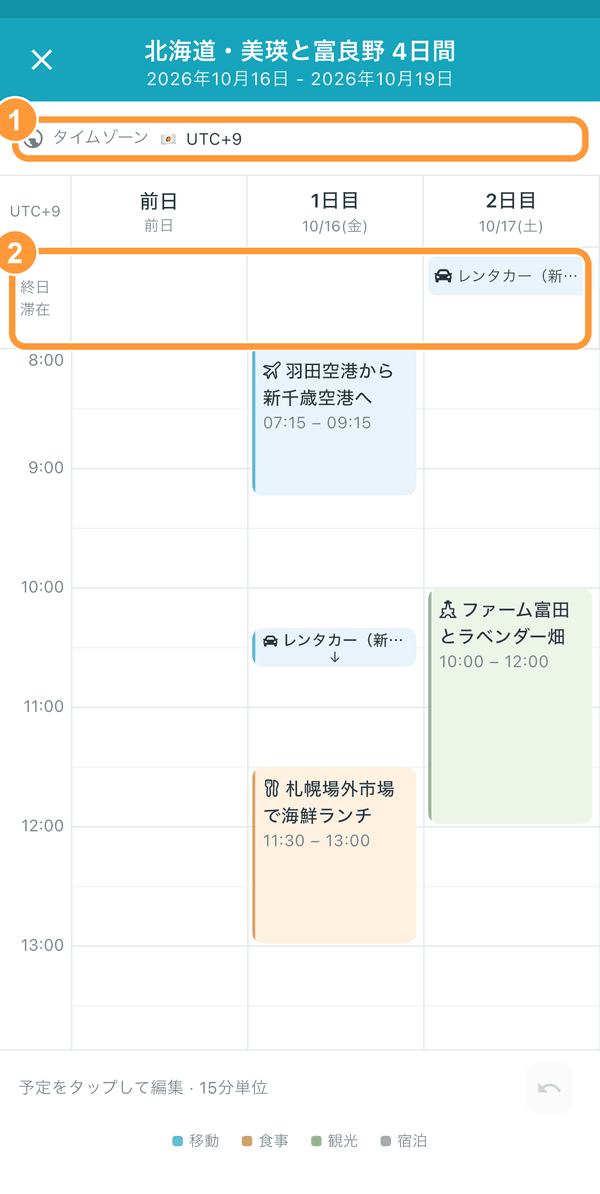
See all your trip's schedules together, with dates across and times down. Spread or pinch with two fingers to resize the days and hours. Use ① "Time zone" to switch the time zone the times are shown in. ② Schedules that last all day, such as hotel stays or rental cars, appear in the "All day / Stays" row. Tap the "×" at the top left to go back to the list.
Move a Schedule's Date and Time in the Timetable
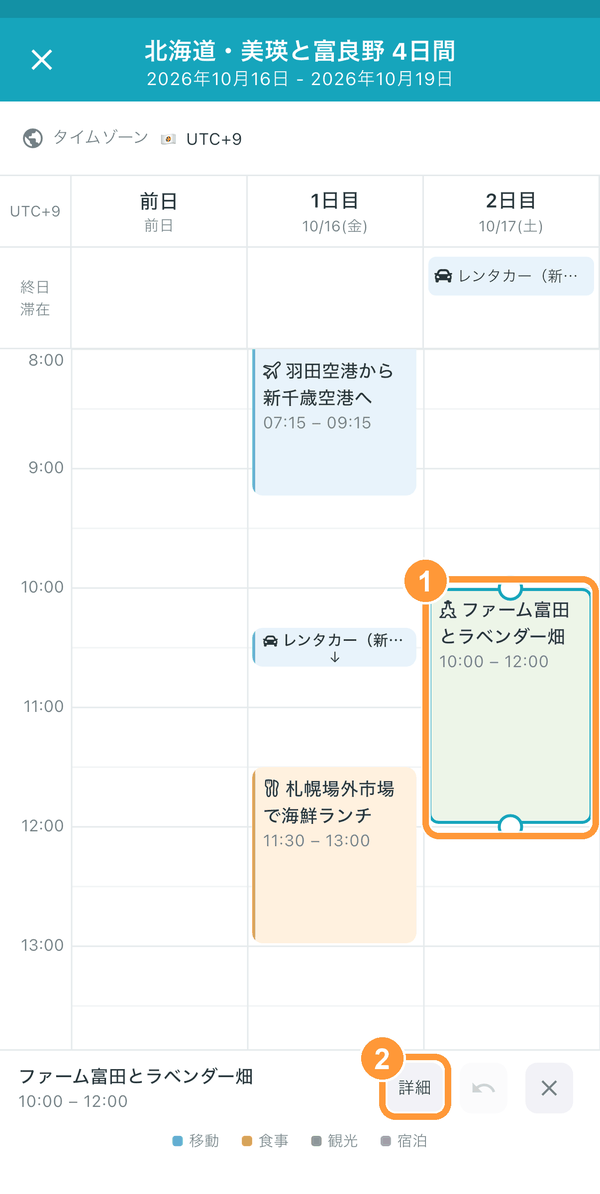
Tap or long-press a schedule to select it, and round handles appear at its top and bottom. Drag ① the schedule to move its date and time, or drag a handle to move only its start or end time, in 15-minute steps. Tap ② "Details" to open the schedule's detail screen.
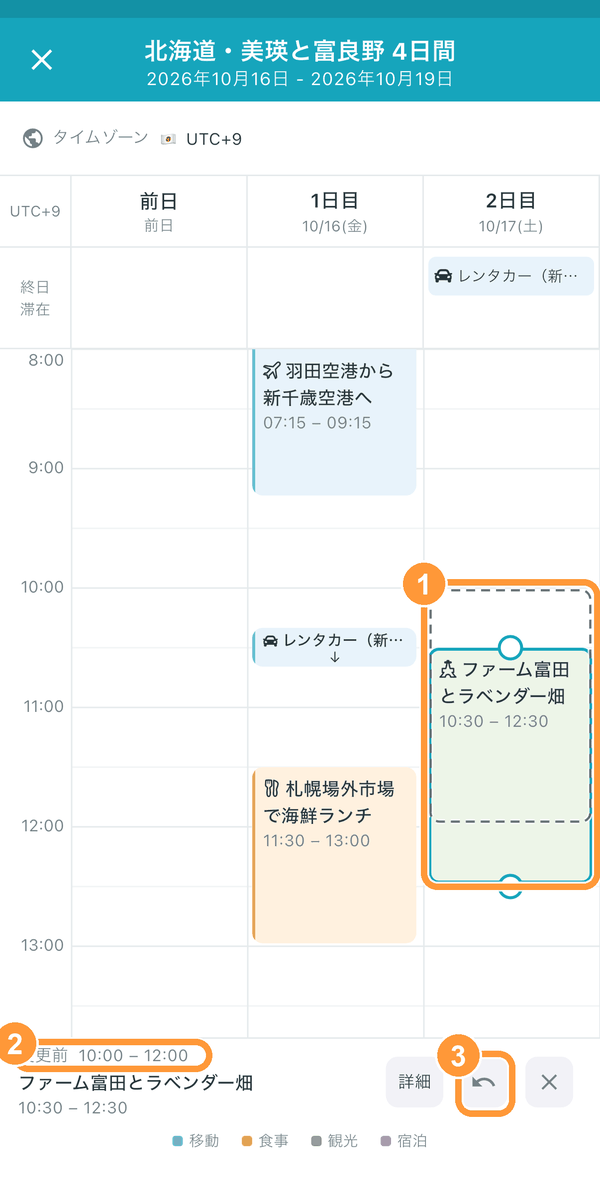
On a schedule you've moved, ① its original position stays marked with a dashed line, and ② the "Before change" time is shown below it. Use ③ the button to undo your last action.
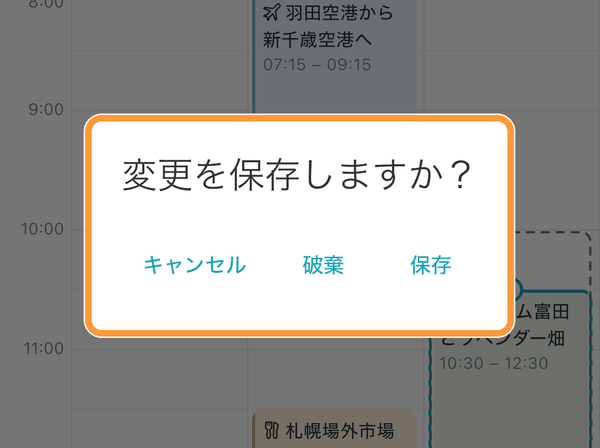
Your changes are saved all at once when you close the timetable. Tap the "×" at the top left, and when "Save changes?" appears, choose "Save". If you choose "Discard", everything goes back to how it was before you moved it.
Create a Schedule from the Timetable
Long-press an empty time slot to show a blue frame. Without lifting your finger, drag down to extend the end time in 15-minute steps.
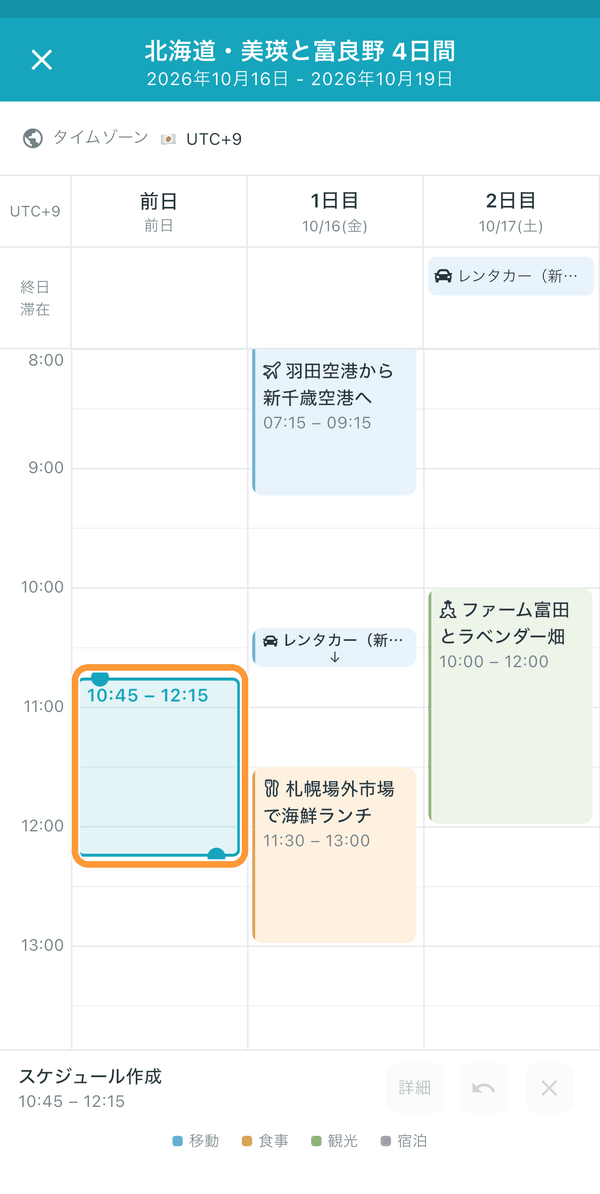
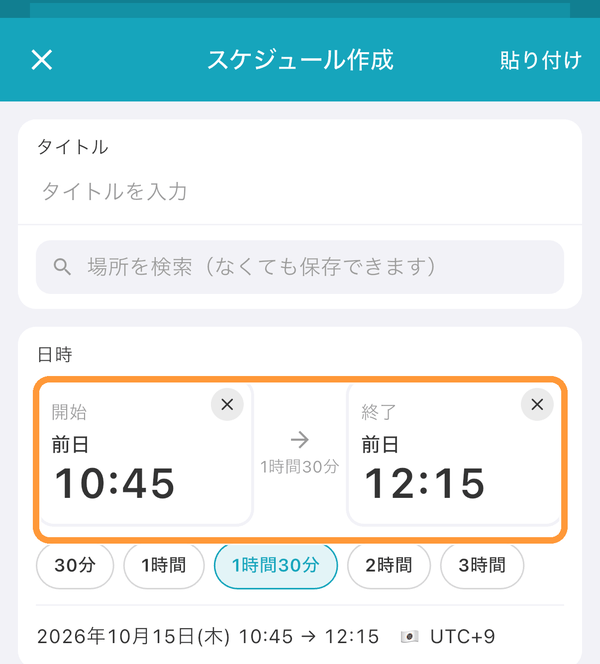
When you lift your finger, the schedule create screen opens with that date and time filled in. Enter a title and other details, then tap "Create". Closing the create screen takes you back to the timetable.
View Schedules on the Map
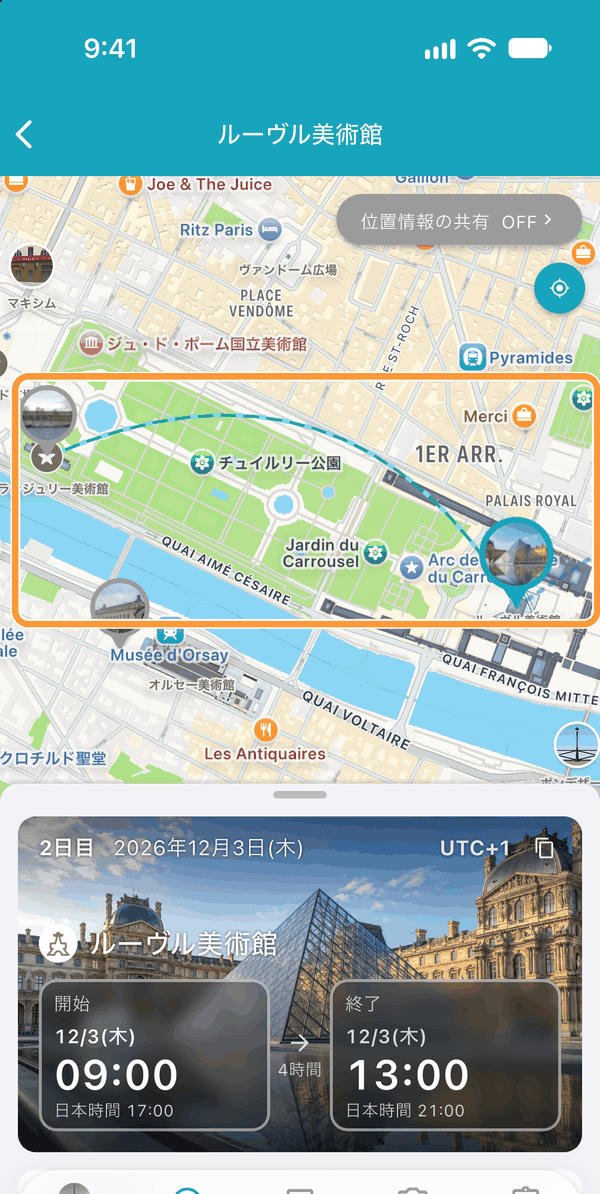
Tap a schedule with a place added to show ① a map at the top of the detail screen. Swipe ② the sheet down to make the map larger.
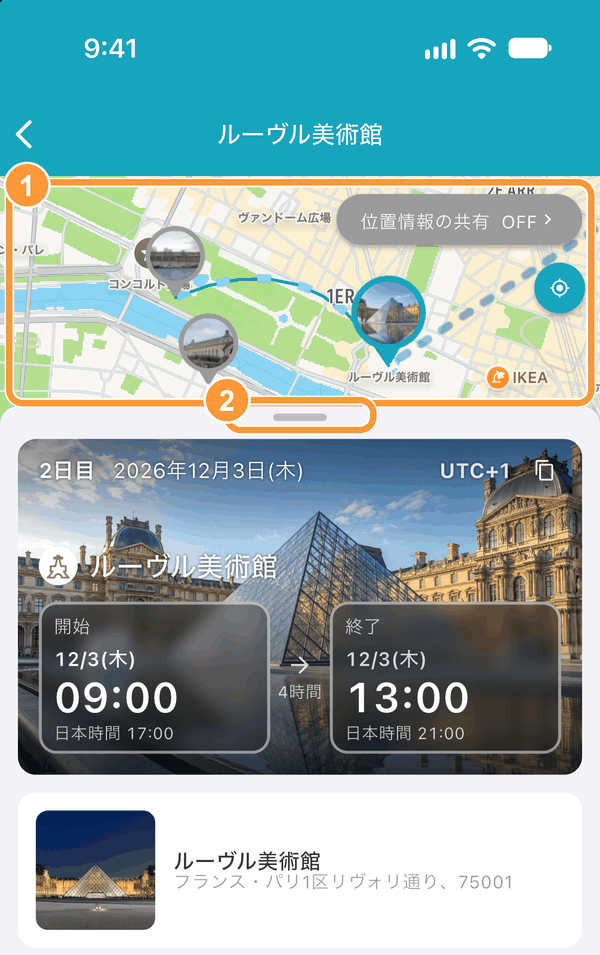
The map connects the open schedule and the ones before and after it with lines in list order, so you can see where you're heading next. Tap another schedule's marker to switch to that schedule.
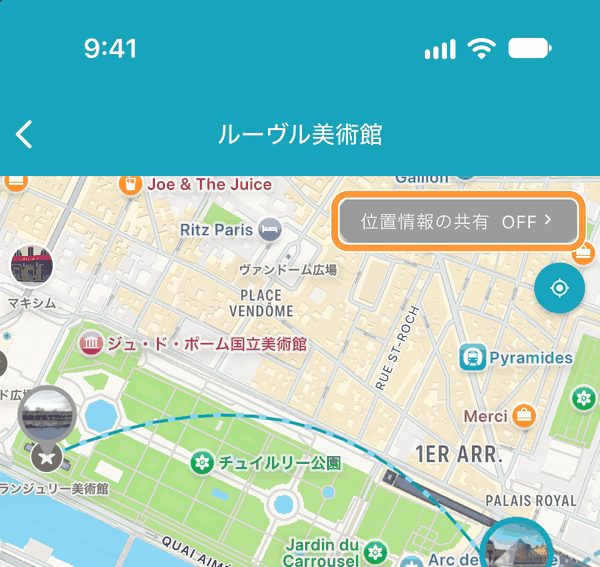
During the trip period set for the itinerary, members can share their current locations with each other using "Share your location" at the top right of the map.
View Spot Information (Local Language, Map Apps)
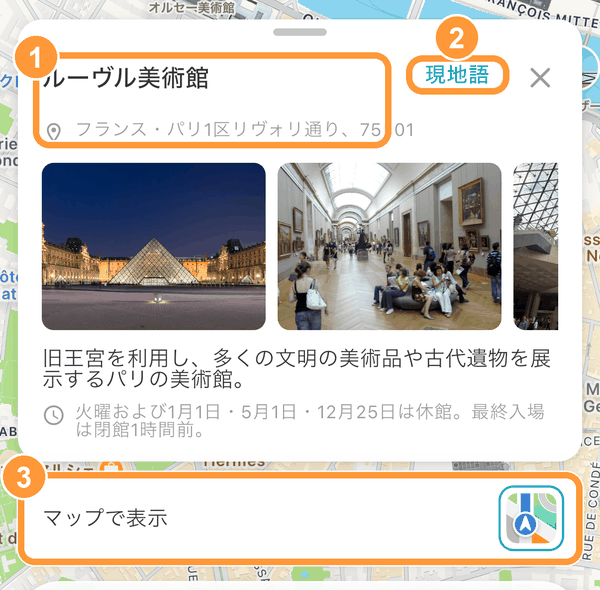
On the detail screen of a schedule with a spot, scroll down to see the spot's photos, description, opening hours, and more. Long-press ① the name or address to copy it. Tap ② "Local language" to show the name and address in the local language. This is handy when showing them to a taxi driver or local people. Use the icon to the right of ③ "Show on map" to open the place in a map app such as Google Maps.
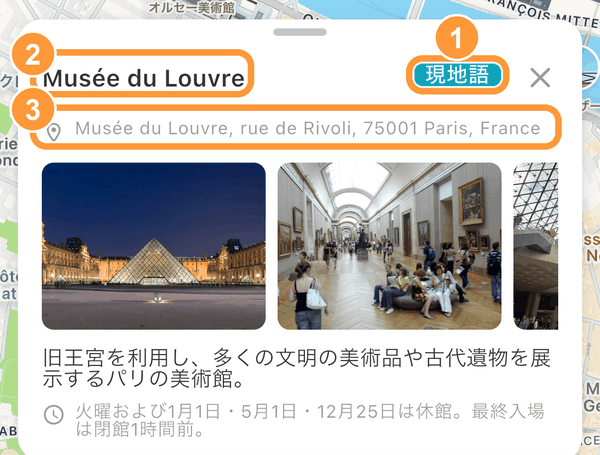
② The name and ③ the address are shown in the local language. Tap ① "Local language" again to go back to the original display. "Local language" appears when the language being displayed differs from the local language.
Copy a Schedule to Another Itinerary
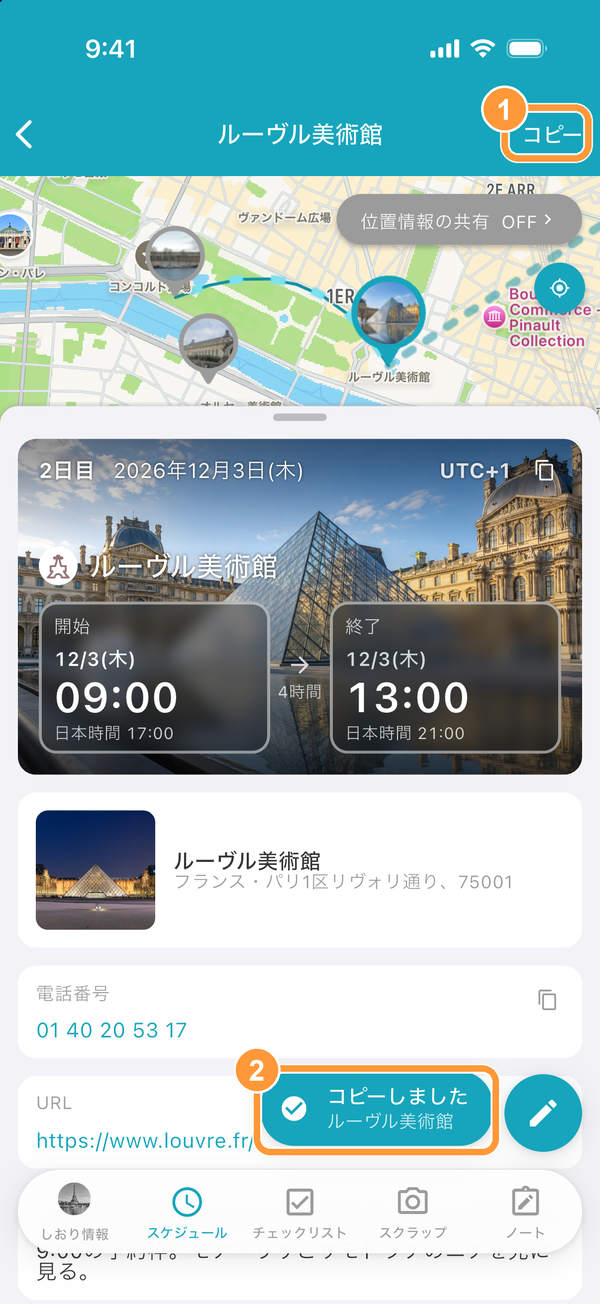
On the detail screen of the schedule you want to copy, ① tap "Copy" at the top right. ② "Copied" appears.
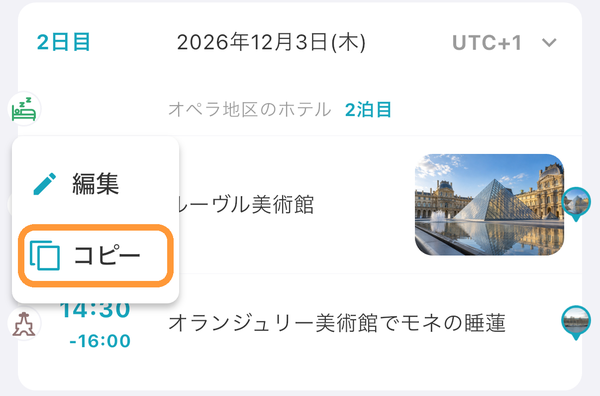
You can also long-press the schedule in the schedule list and choose "Copy".
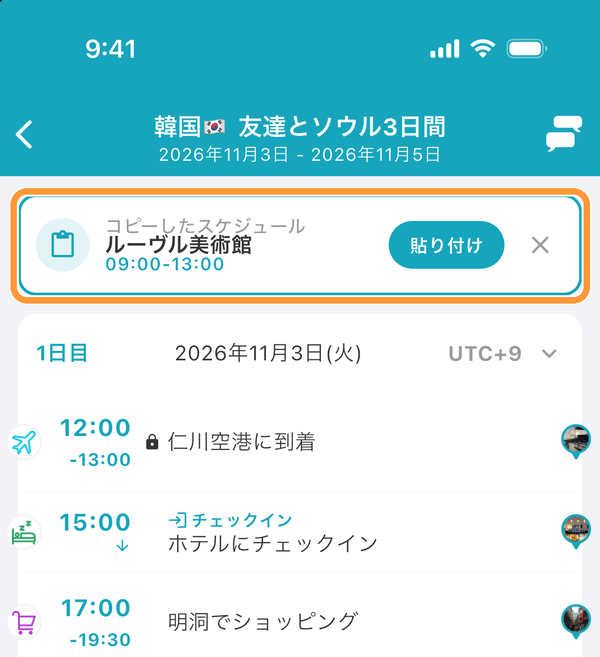
Open the schedule list of the itinerary you want to copy it to. "Copied schedule" appears at the top. Tap "Paste". If you don't need it, tap "×" to close it.
The "Create schedule" screen opens with the copied details filled in. ① Check the date and time, then ② tap "Create".