Switching devices
If you want to use tabiori on another device, such as when changing devices, you can log in to tabiori with the same account using the same login method or email address and password.
Check notification history
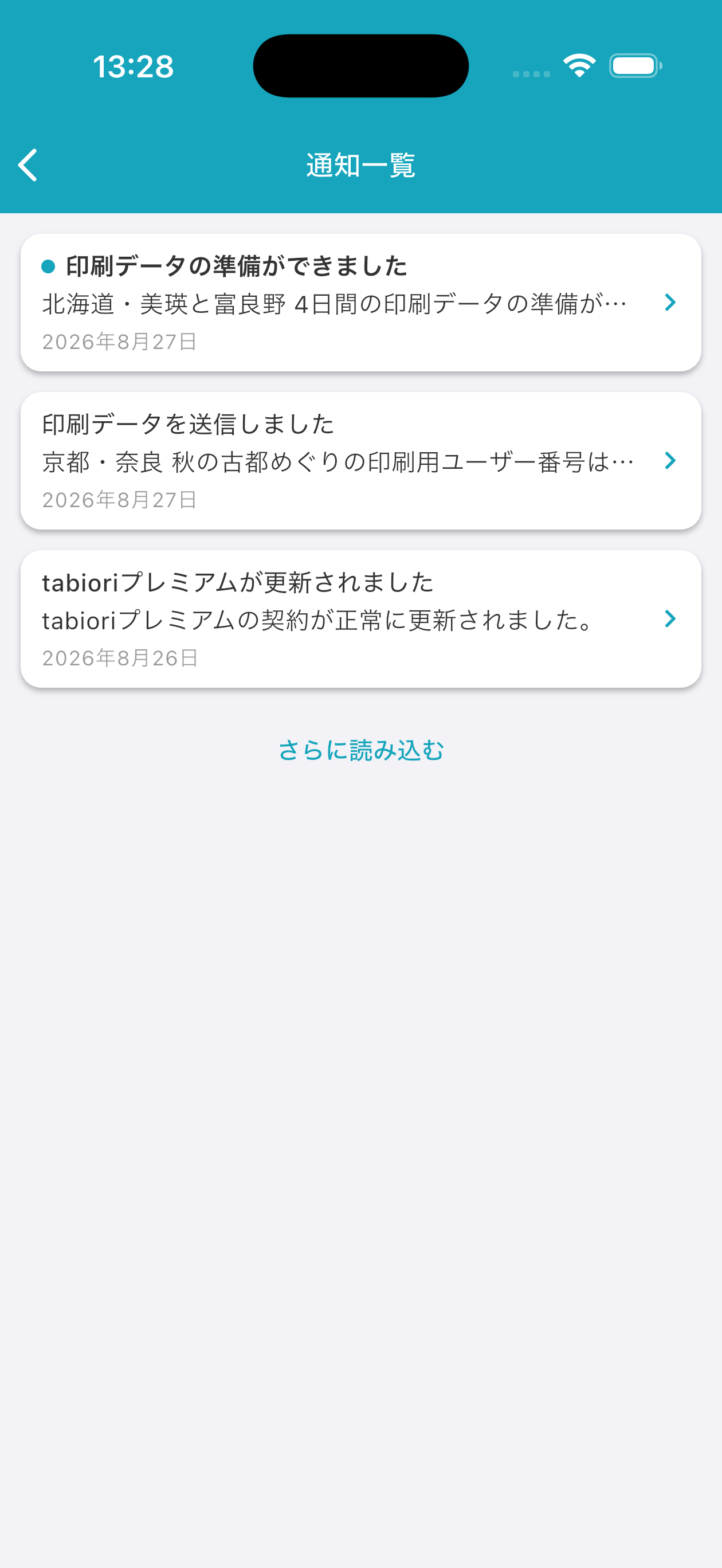
Open notification history from the bell (🔔) at the top right of the itinerary list. Unread items are marked and become read when opened. Load more when the history is long.
How to Set Up Notifications for Edits
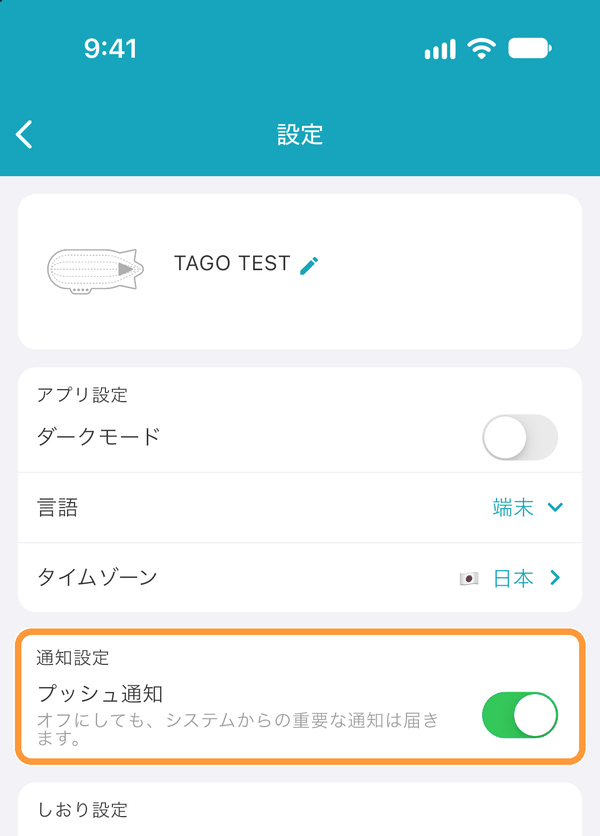
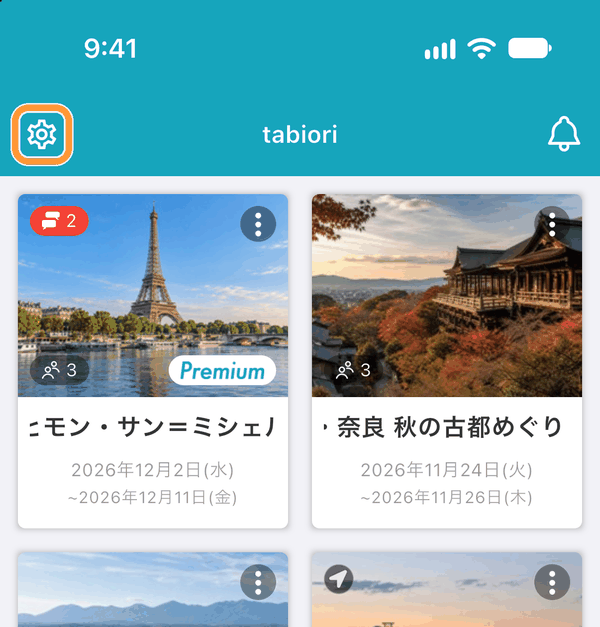
Open the Settings screen with the gear button at the top left of the itinerary list screen, and check that "Push notifications" under "Notifications" is turned on. Also check that notifications from tabiori are allowed in your device settings.
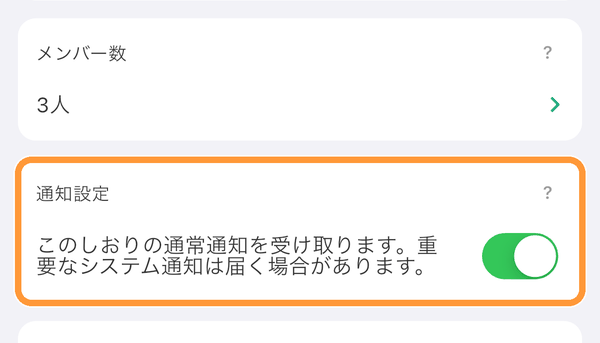
You can turn notifications for each itinerary on or off with "Notifications" on that itinerary's "Information" tab.
Change the Display Language
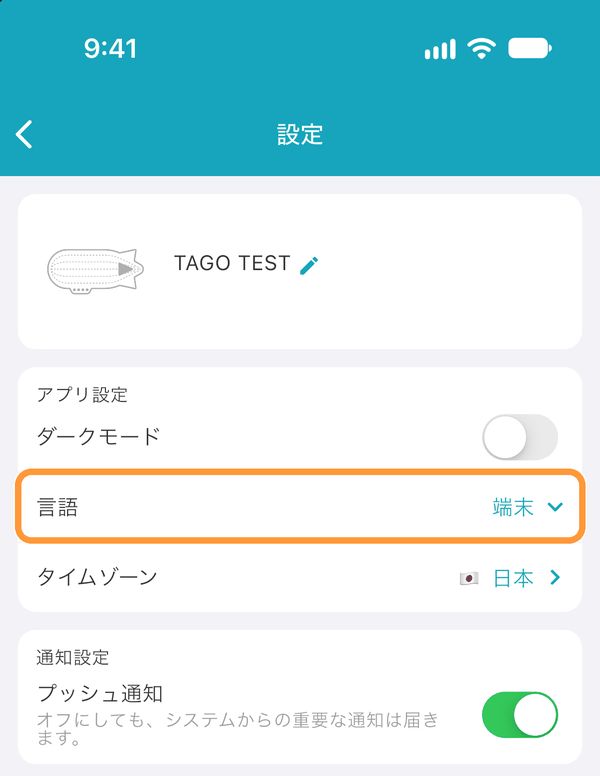
Open the Settings screen with the gear button at the top left of the itinerary list screen, and choose a display language from "Language" under "App settings". Choose "Device" to match your device's language. Your language setting is saved to your account and synced to other devices signed in with the same account.
When You Forget Your Password
Tap the gear button at the top left of the itinerary list screen to open the Settings screen.
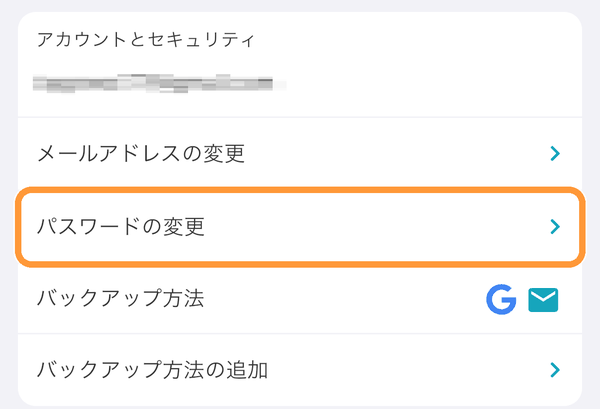
Tap "Change password" under "Account & security".
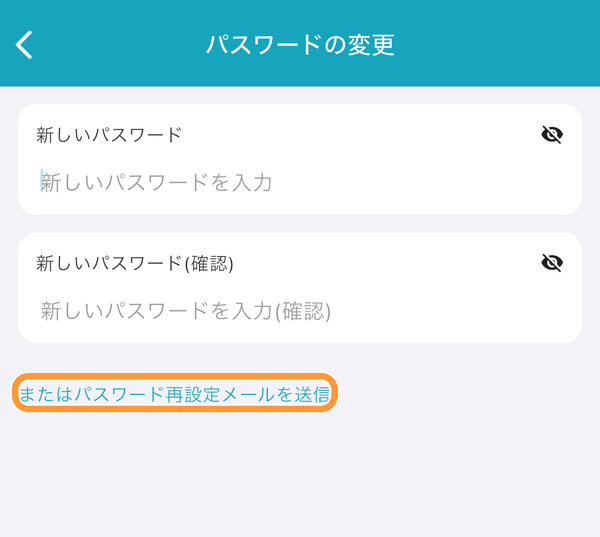
Tap "or send password reset email" to have a password reset URL sent to your registered email address.