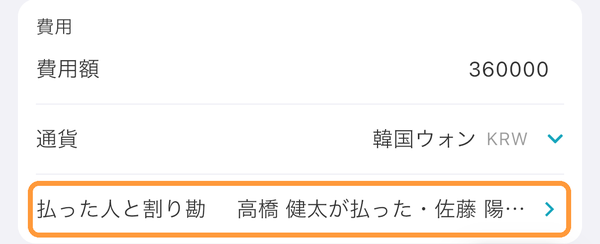
Open the Expenses Page
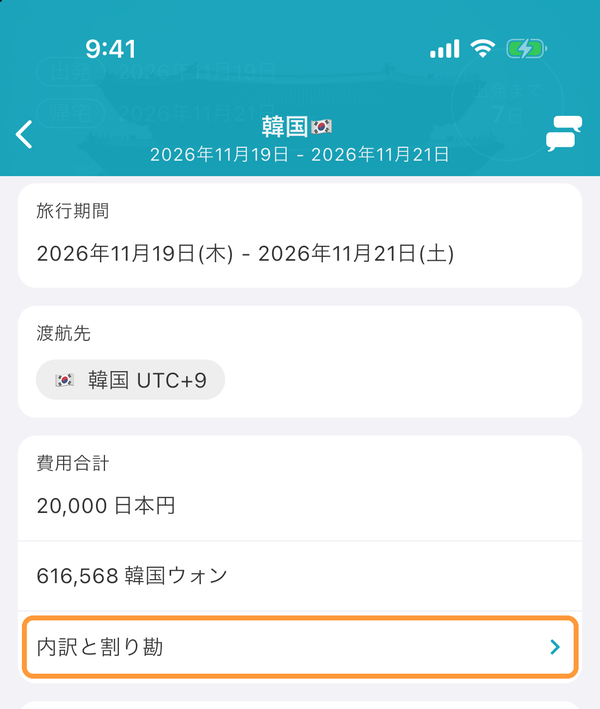
On the "Information" tab, tap "Breakdown and bill splitting" below the total cost. On the web, open it from "Expenses" in the left menu on a computer, or from "Breakdown and bill splitting" in "Information" on a phone.
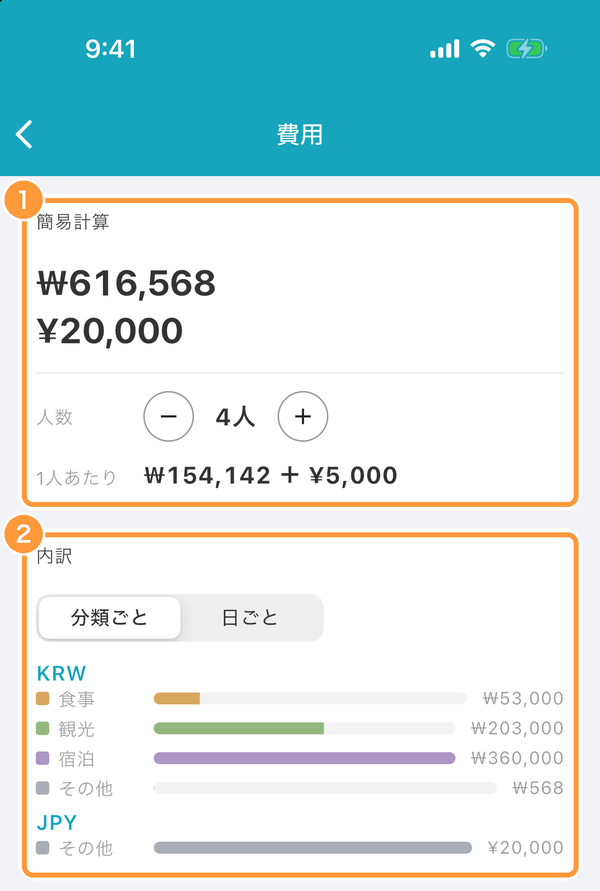
① "Quick calculation" shows the total cost in each currency. Change the number of people to see the amount per person (a simple division, separate from settling up who owes whom). ② "Breakdown" shows the amounts by category, such as transport, food, sightseeing and stays, or by day.
Enter Who Paid and Who It's Split Among
"Details" lists, day by day, the costs entered in the schedule and the expenses not in the schedule. Tap the expense you want to enter who paid and who it's split among.
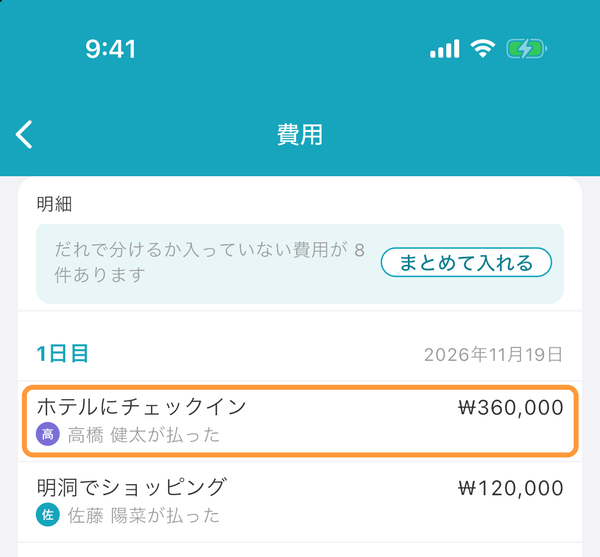
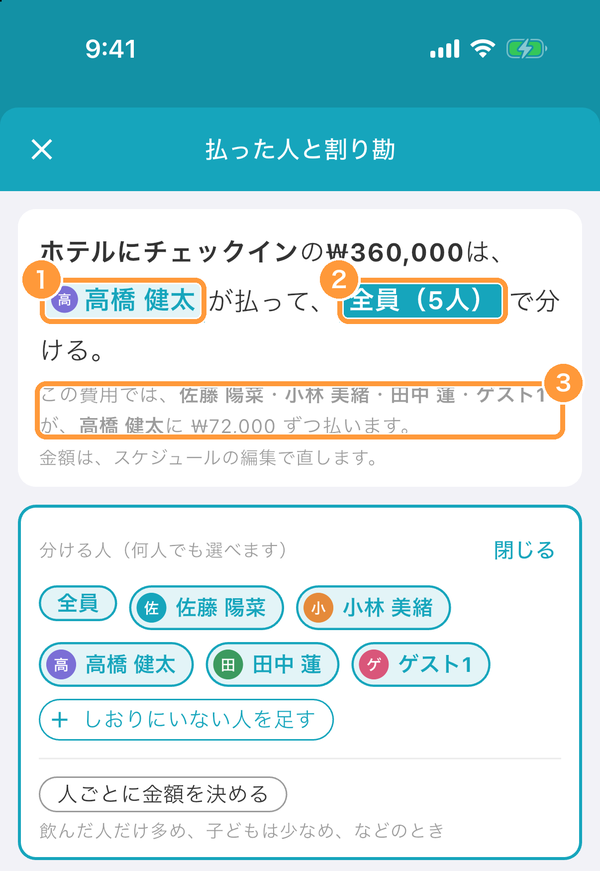
On the "Payer and split" screen, you fill in a single sentence. Tap ① to choose who paid, and tap ② to choose who the cost is split among. You can choose any number of people, or "Everyone". ③ Shows who owes whom how much for this expense. With "Set an amount per person", you can also give each person a different share.
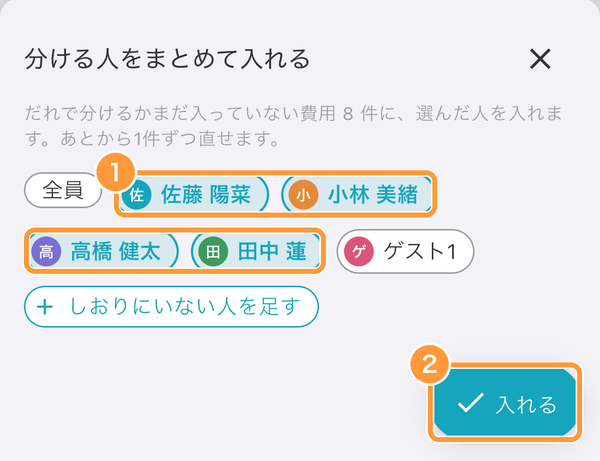
When some expenses don't say who paid or who they're split among yet, the number of them and "Set at once" appear above "Details". Tap it, ① choose people and ② tap "Set" to fill them all in at once. You can still change each expense later.
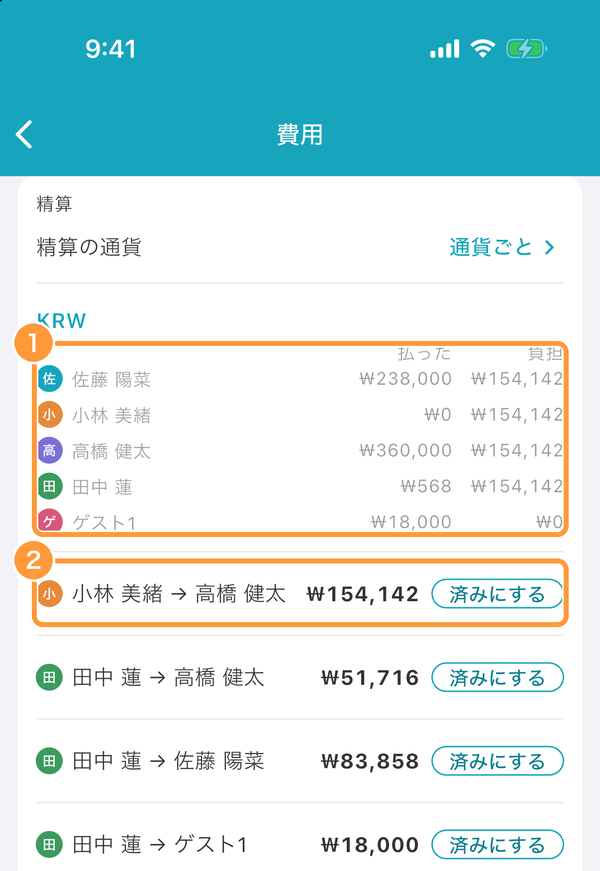
Settle Up
Based on the expenses that say who paid and who they're split among, "Settle up" shows ① how much each person paid and their share, and ② who should pay whom how much. Once a payment is made, tap "Mark as paid" to keep a record of it.
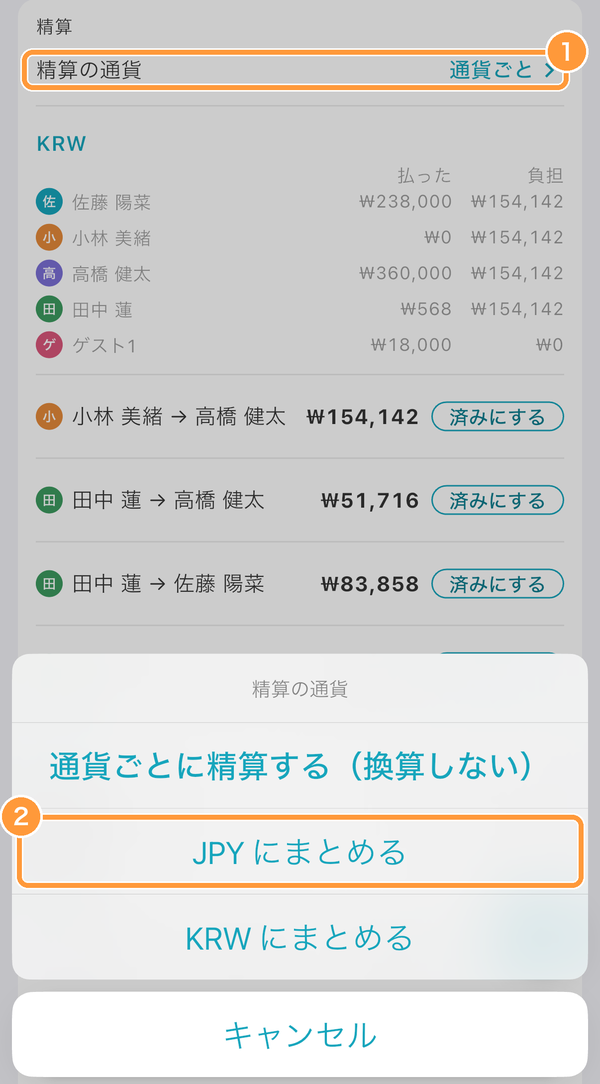
When the trip has two or more currencies, tap ① "Settle in" and ② choose a currency to settle everything in one currency.
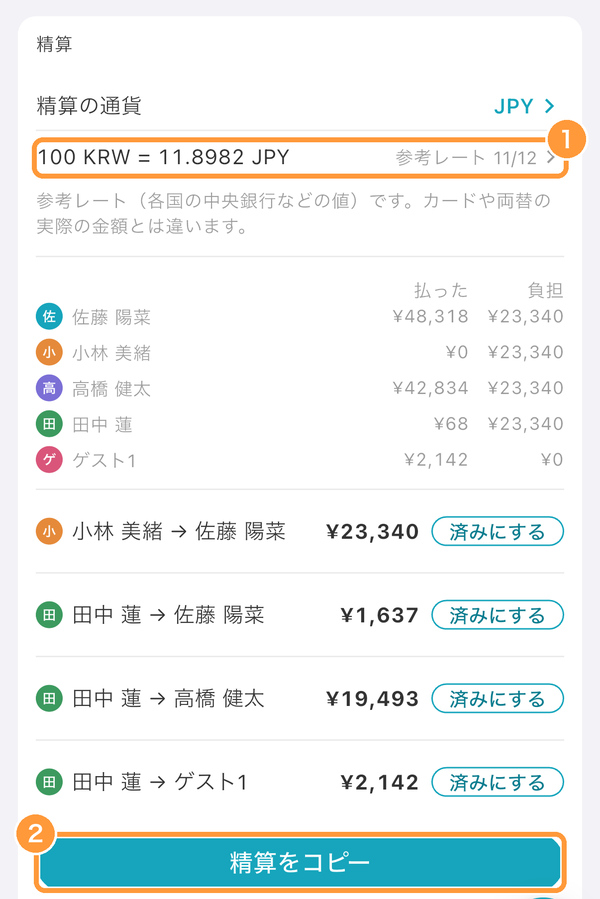
① Amounts are converted with reference rates from central banks and similar sources. Tap the rate to enter one yourself. Card and exchange amounts may differ. ② "Copy settlement" copies the settlement so you can paste it into a chat and send it.
Add Expenses Not in the Schedule
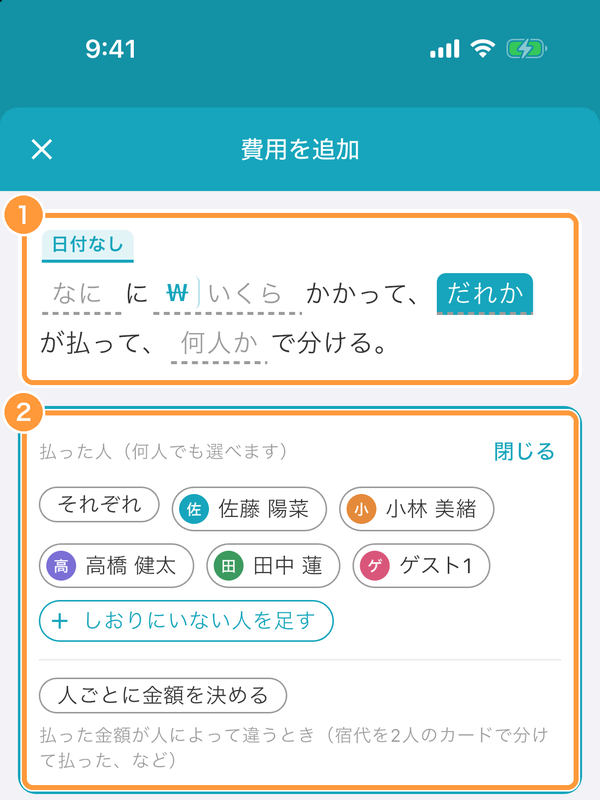
Add expenses that aren't in the schedule, such as souvenirs or taxis, with the "+" at the bottom right of the Expenses page. ① Fill in "what", "how much" and the rest in the sentence. You can also choose a date. ② When choosing who paid or who it's split among, tap "Add someone not in the itinerary" to include people who haven't joined the itinerary.
Enter Who Paid and the Split When Creating or Editing a Schedule
When you enter an amount under the cost on the schedule create or edit screen, a "Payer and split" row appears. Tap it to enter who paid and who it's split among, just like on the Expenses page.