
How to Print
Tap "Print Itinerary" on the itinerary information page of the itinerary you want to print.
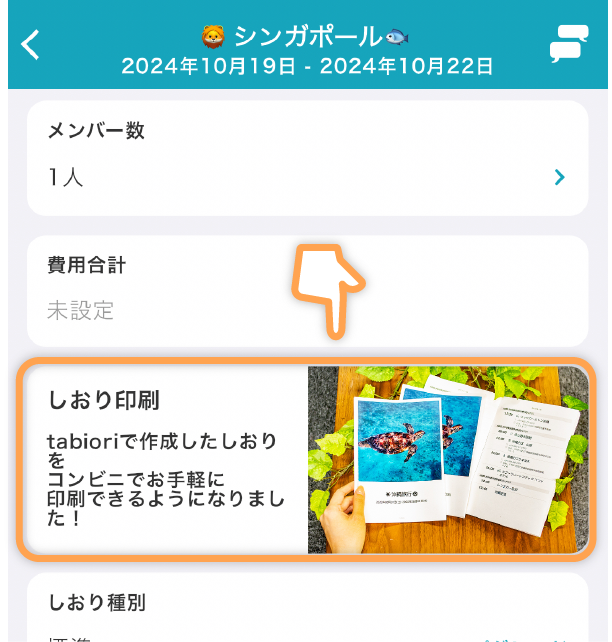
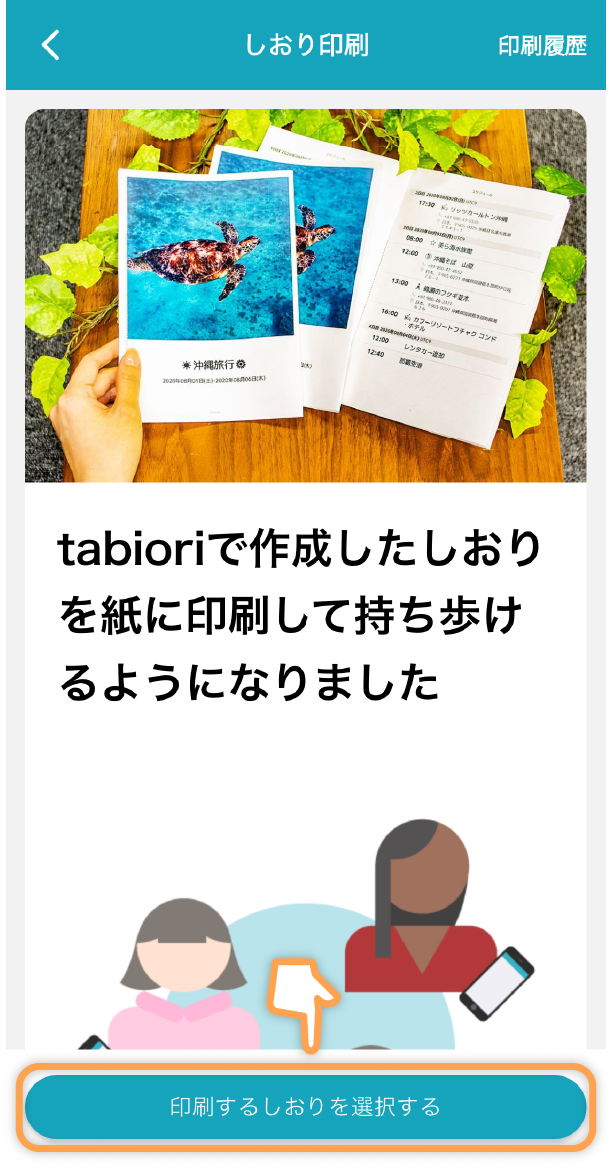
The itinerary printing usage explanation page will be displayed.
After checking the content, tap "Select Itinerary to Print".
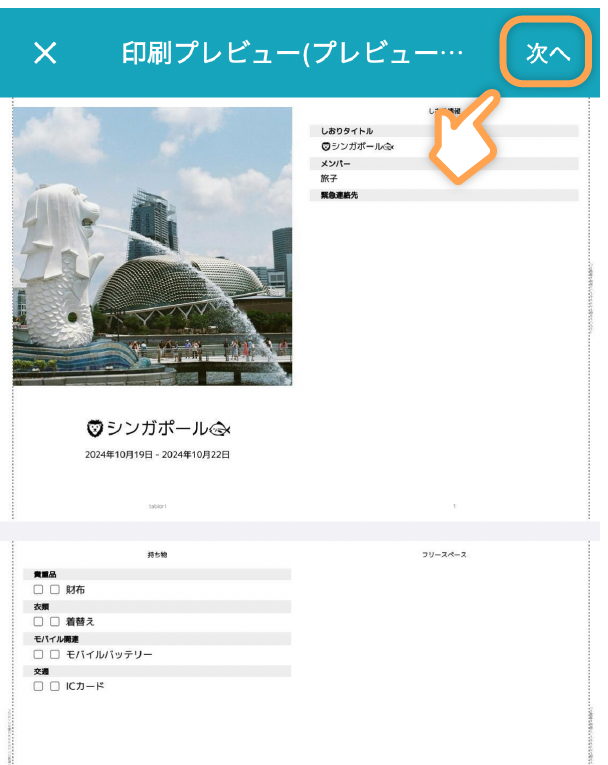
Once the print preview is generated, check the print content and tap the "Next" button in the top right to proceed to the payment confirmation screen.
Payment method is credit card only.
How to Check Print Number
After launching the app, go to the Store tab from the itinerary list screen.
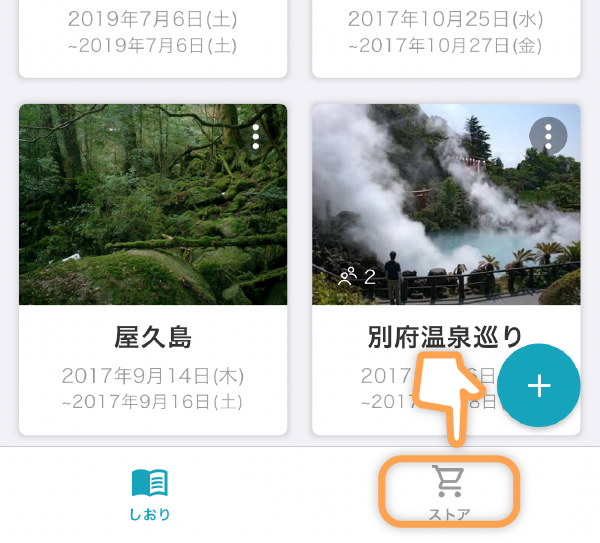
Then tap on Itinerary Printing.
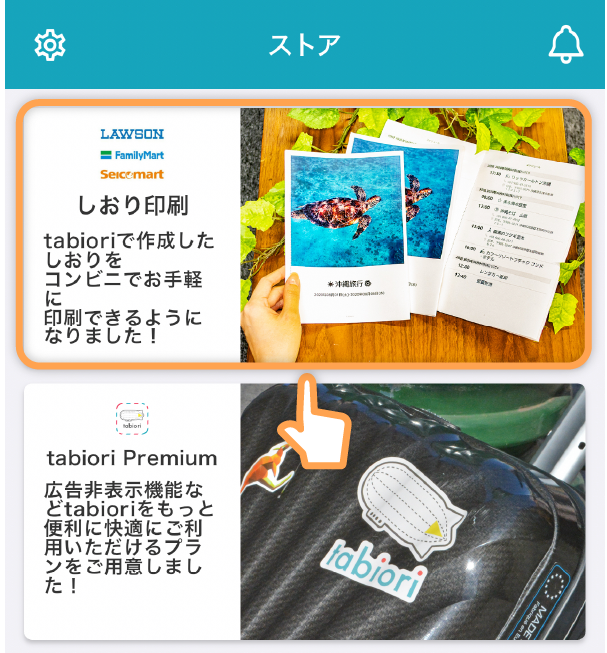
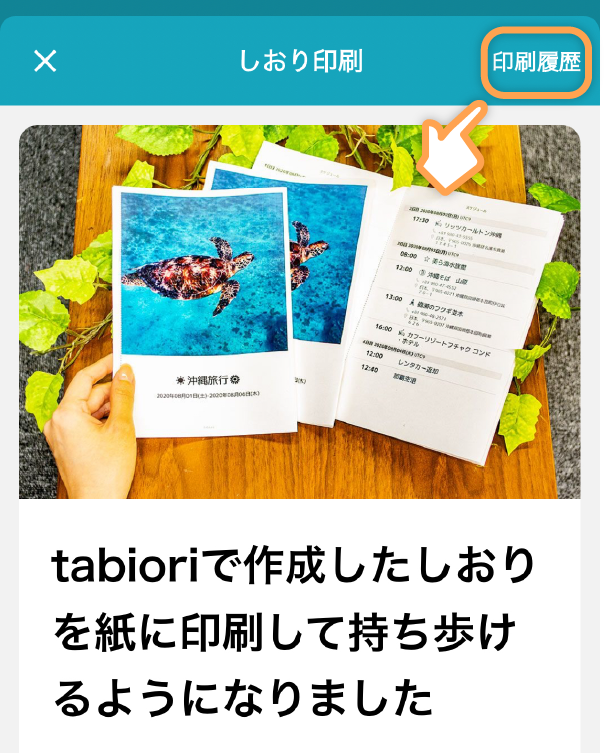
Next, tap on Print History in the top right.
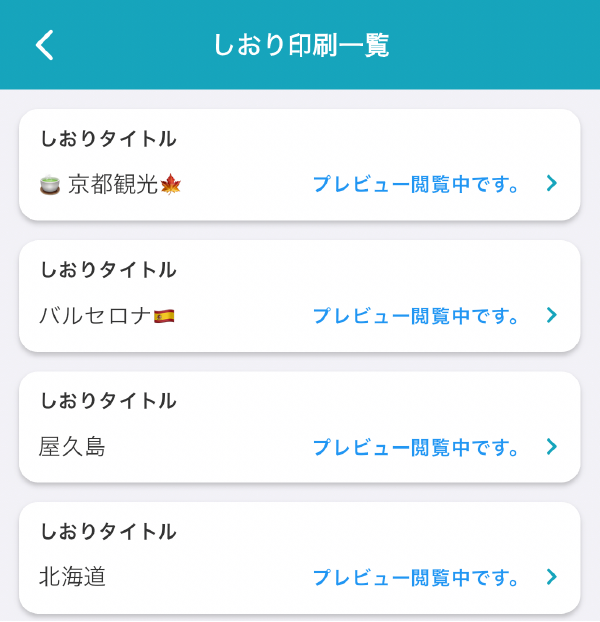
Itineraries with print previews will be displayed, so tap on the itinerary you want to check the status or print number for.
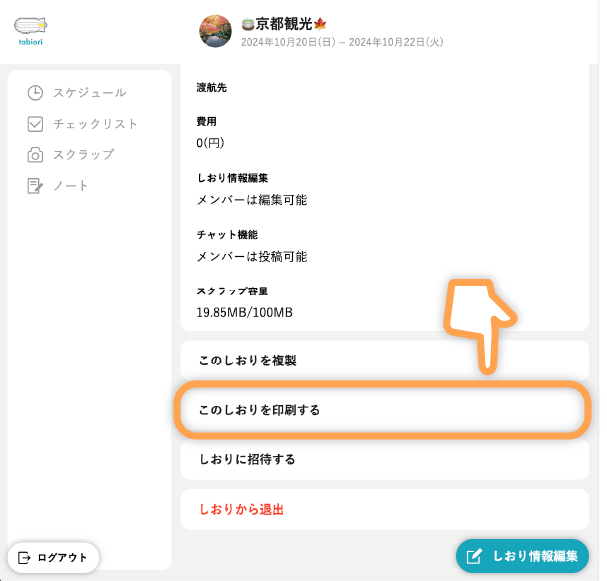
Print from Home PC using WEB version of tabiori
Click "Print this Itinerary" from the itinerary information page of the itinerary you want to print.
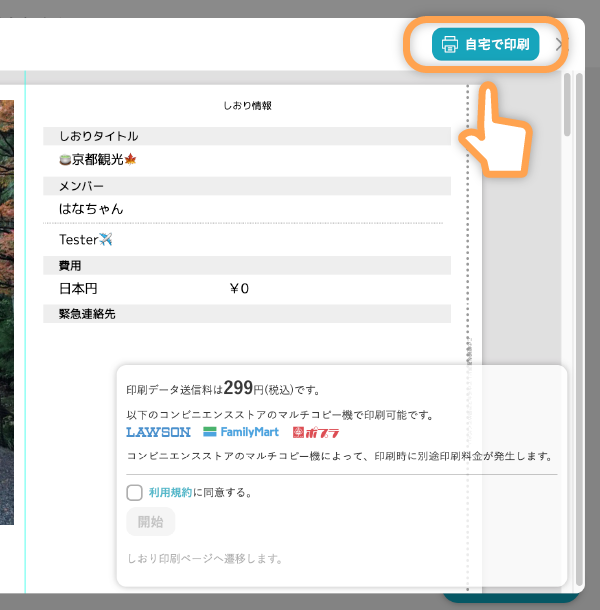
Click "Print at Home" in the top right of the preview window to print the itinerary using your home printer.
This feature is available to tabiori Premium subscribers (as of July 26, 2024).
How to Bind After Printing
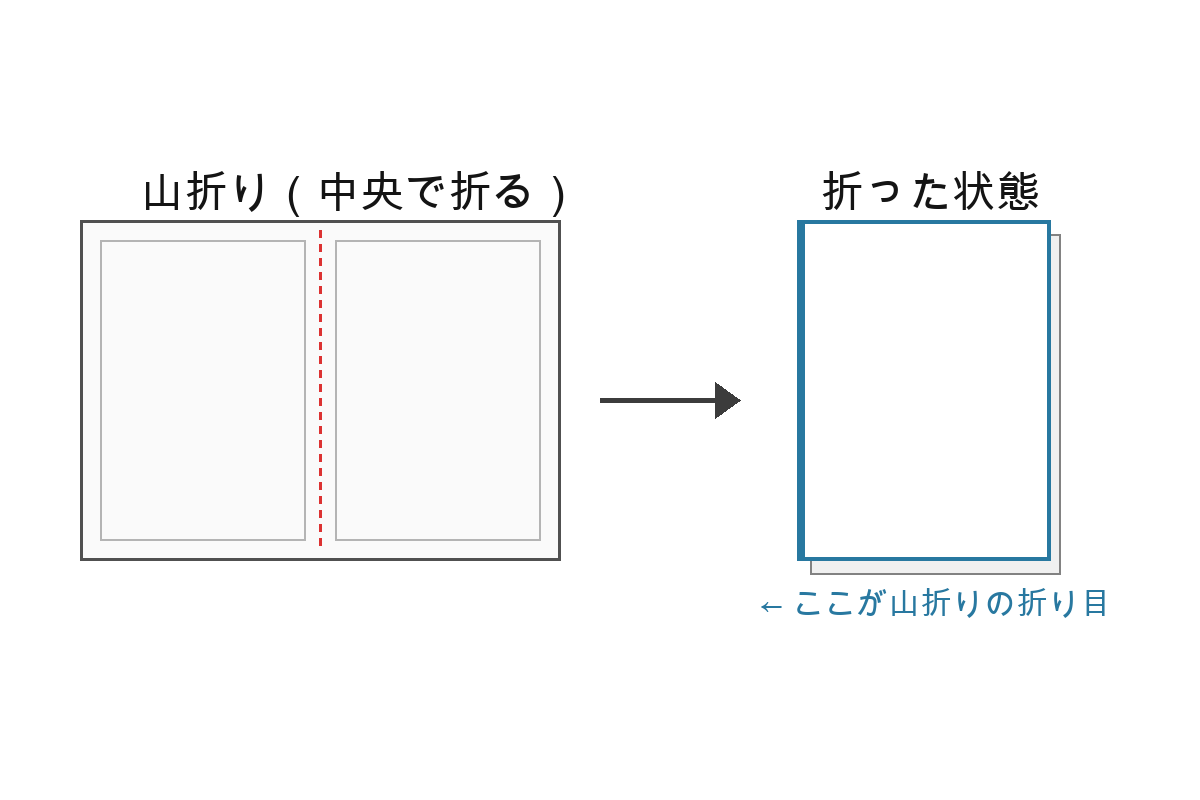
Mountain-fold each printed sheet along the vertical centerline so that the printed side faces outward.
Stack the folded sheets in order and staple them along the guide line printed on each sheet edge ("Please staple along this vertical line") to complete your bag-bound itinerary booklet.